
By Engi | Chemical Engineer, BS | Engineering Manager
Last Updated: February 5, 2026
Note: This post contains affiliate links (disclaimer).
Your home network probably handles SSH sessions to production servers, API keys in environment variables, proprietary code repositories, and client data. A compromised network doesn’t just mean someone steals your Netflix password—it means attackers potentially access everything you’re working on.
Most engineers run their home networks on consumer routers with default configurations, no firewall rules beyond basic NAT, and DNS that leaks every domain you visit to your ISP. That works fine until it doesn’t. One compromised IoT device, one malware-infected laptop, one unpatched vulnerability—your entire network becomes an attack surface.
This guide covers practical network security: firewall configurations that actually work, DNS solutions that block malware and tracking, network monitoring that catches problems before they become incidents, and solutions ranging from plug-and-play Firewalla boxes to custom pfSense builds. Whether you’re protecting a home office or a small engineering team, here’s how to secure your network properly.
Why Network Security Matters for Engineers
The threat model for engineers differs from regular users. You’re not just protecting personal data—you’re protecting intellectual property, customer information, and access to production systems.
Attack vectors specific to technical work:
Remote work means your home network handles production traffic. VPN connections, SSH keys, AWS credentials, database access—everything flows through a network that’s probably protected by a $50 router running firmware from 2022. One compromised device on your network can pivot to everything else.
IoT devices are security nightmares. Smart TVs, cameras, thermostats, and even smart refrigerators run outdated operating systems with known vulnerabilities. They phone home constantly, often without encryption, leaking information about your network topology and device inventory to anyone listening.
DNS queries reveal everything. Every website you visit, every API your code calls, every update your system checks—all visible to whoever controls your DNS. Your ISP sees it all and often sells that data to advertisers and data brokers.
Lateral movement after initial compromise. Once an attacker gains access to any device on your network, they can scan for other devices, exploit local vulnerabilities, and steal credentials from network traffic. A single infected smart bulb becomes a foothold into your development machine.
Regulatory and legal implications. If you’re handling GDPR-covered data, HIPAA information, or working with clients who have security requirements, a home network breach could mean legal liability and contract violations.
The solution isn’t complicated—segment your network, implement proper firewall rules, use secure DNS, and monitor for anomalies. These are the same principles you’d apply to a production environment, just scaled for home use.
Simple Solution: Firewalla for Engineers
If you want effective network security without spending weekends configuring firewall rules, Firewalla delivers professional-grade protection in a plug-and-play device.
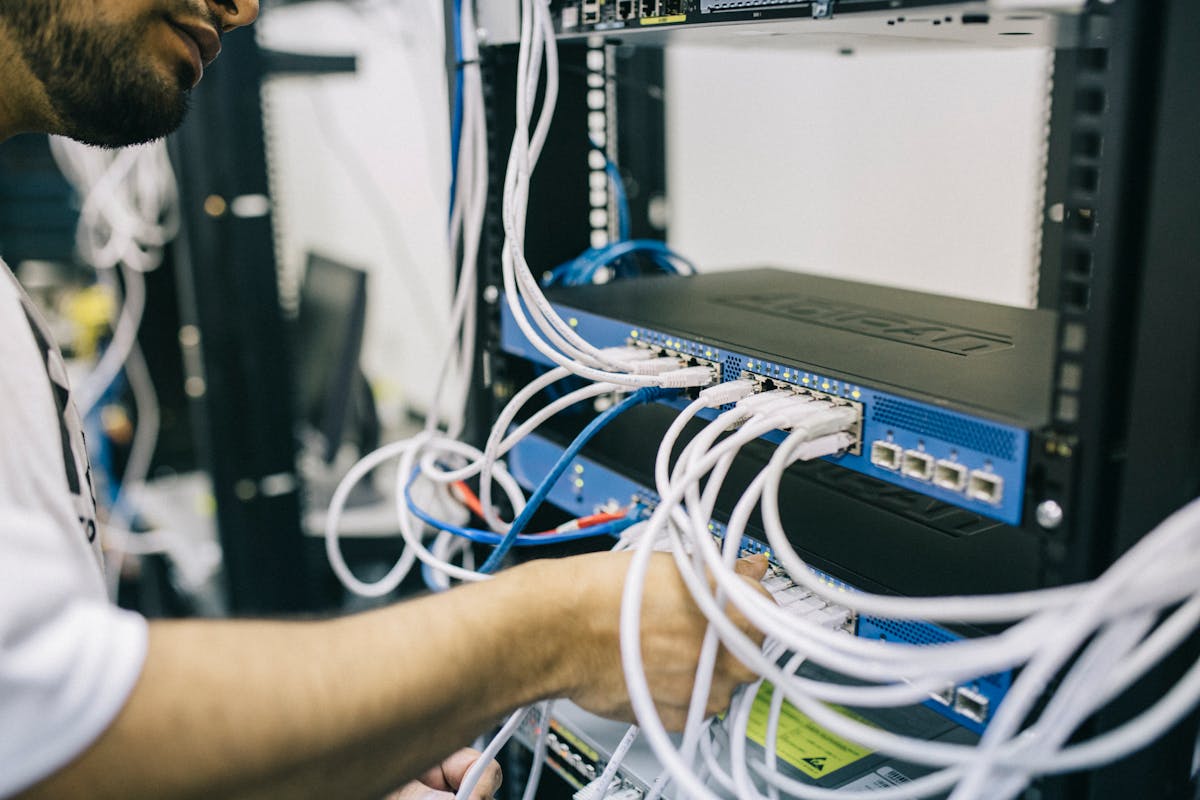
Firewalla sits between your router and network, inspecting all traffic in both directions. It blocks malware, prevents data exfiltration, and segments IoT devices from your work machines—all through a mobile app.
Why engineers choose Firewalla:
Network segmentation without VLANs. The app creates isolated networks for IoT devices, guests, and work machines. Your smart TV can’t scan your development laptop. Guest WiFi stays truly isolated.
Threat intelligence that actually works. Firewalla blocks connections to known malicious IPs, phishing sites, and command-and-control servers. The threat feed updates continuously—you’re not waiting for firmware updates to patch vulnerabilities.
Deep packet inspection for anomaly detection. Unusual traffic patterns trigger alerts. If a device suddenly starts scanning your network or uploading gigabytes of data at 3am, you know immediately.
Ad and tracker blocking at the network level. Acts like Pi-hole but with malware protection and no separate device to maintain. Blocks ads, tracking domains, and telemetry for every device on your network.
VPN server built-in. Create a secure tunnel back to your home network when traveling. Access home services without exposing them to the internet. All traffic encrypted end-to-end.
Real-time monitoring and alerts. See exactly what’s happening on your network—which devices are communicating, data volumes, connection attempts. Push notifications for suspicious activity.
Firewalla Model Comparison
Firewalla Gold – $468
– 1Gbps throughput with IDS/IPS enabled
– 4 Ethernet ports (router mode or bridge mode)
– VPN server (WireGuard and OpenVPN)
– DNS/DHCP server
– Network segmentation and traffic shaping
– Best for: Most engineers, small offices, gigabit internet
Firewalla Purple SE – $239
– 500Mbps throughput with IDS/IPS
– 1 Ethernet port (bridge mode only)
– Same security features as Gold
– Best for: Budget builds, sub-gigabit internet
Firewalla Gold Plus – $688
– 2.5Gbps+ throughput
– 2.5GbE ports
– Multi-gig internet support
– Best for: 2.5G+ internet, heavy VPN usage, small teams
The Gold model hits the sweet spot for most engineers—full gigabit performance with all security features enabled, enough ports for router mode, and reasonable price.
Setup Process
Firewalla installs in bridge mode (between modem and router) or router mode (replacing your router entirely). Bridge mode is easier but router mode gives more control.
Bridge mode installation:
1. Connect Firewalla between modem and router
2. Download Firewalla app (iOS/Android)
3. Scan QR code on device to pair
4. Enable desired protection features
5. Create network segments as needed
Router mode installation:
1. Connect modem to Firewalla WAN port
2. Connect switch to Firewalla LAN ports
3. Configure as router through app
4. Set up WiFi (separate access points needed)
5. Configure VLANs and firewall rules
Recommended features to enable:
– Family Protect (blocks malware, phishing, adult content)
– Ad Block Plus (blocks ads and trackers)
– Virus/Malware Shield (threat intelligence)
– Behavioral Analysis (detects anomalies)
– Port Scan Detection (alerts on network scanning)
– VPN Server (for remote access)
Network segmentation strategy:
1. Main Network – Work computers, phones, tablets
2. IoT Network – Smart home devices, TVs, cameras
3. Guest Network – Visitors, untrusted devices
4. Lab Network – Test devices, experimental projects
Firewalla blocks traffic between networks unless you explicitly allow it. Your smart TV can’t access your development machine. Guest devices stay isolated from everything.
Advanced Solution: pfSense/OPNsense Custom Firewall
For engineers who want complete control, pfSense or OPNsense running on dedicated hardware provides enterprise-grade security with unlimited flexibility.
Both are FreeBSD-based firewall distributions with web interfaces for configuration. OPNsense is a fork of pfSense with modern UI and different philosophy—both work excellently.
Why build a custom firewall:
Complete control over every rule. Define exactly what traffic is allowed, denied, logged, or rate-limited. Create complex rule sets based on source, destination, port, protocol, time of day, or traffic characteristics.
Packages for everything. VPN server (WireGuard, OpenVPN, IPSec), DNS filtering (pfBlockerNG), intrusion detection (Suricata, Snort), traffic shaping, proxy server, VLAN management—everything installable through the package manager.
Performance scales with hardware. A $200 mini PC handles gigabit with IDS/IPS. A $500 build pushes 2.5Gbps+. Add more NICs for more network segments.
No subscription fees. All features included forever. No monthly charges for VPN, no paywalls for advanced features. Just hardware and electricity costs.
Hardware Options for pfSense/OPNsense
Budget Build: Mini PC with Multiple NICs
Protectli Vault 4 Port – $299
– Intel Celeron N3160 (4 cores)
– 4GB RAM, 32GB SSD
– 4x Intel Gigabit NICs
– Fanless, silent operation
– 15W power consumption
– Best for: Home networks, <1Gbps internet
Mid-Range Build: Better Performance
Protectli Vault 6 Port – $479
– Intel Core i5-7200U
– 8GB RAM, 120GB SSD
– 6x Intel Gigabit NICs
– Handles gigabit with IDS/IPS easily
– Best for: Gigabit internet, multiple VLANs, VPN server
High-Performance Build: Multi-Gig Networks
QOTOM Mini PC with i5 – $599
– Intel Core i5-8250U (4 cores, 8 threads)
– 16GB RAM, 256GB SSD
– 4x 2.5GbE Intel NICs
– Handles 2.5Gbps+ with Suricata IDS
– Best for: Multi-gig internet, heavy VPN usage, small teams
DIY Option: Repurpose Old PC
If you have an old desktop or laptop lying around:
– Add Intel Gigabit NIC PCIe Card – $35 for desktop
– Or use USB to Ethernet Adapter – $28 for laptop
– Minimum: Dual-core CPU, 4GB RAM, 16GB storage
– Works great for learning, test environments
pfSense vs OPNsense: Which to Choose?
pfSense – More established, larger community, more documentation
– Netgate (company behind pfSense) makes commercial appliances
– Massive community support and guides
– Package ecosystem is mature and tested
– Documentation is extensive
– Some features require Netgate hardware (2.7+)
OPNsense – Modern interface, some say cleaner architecture
– Completely open-source, no commercial restrictions
– Modern web UI with better UX
– Built-in IDS/IPS with easier setup
– Weekly updates vs pfSense’s release cycle
– Smaller but growing community
Recommendation: Try both with live USB before installing. OPNsense has the better interface, pfSense has more tutorials and community support. Both work equally well for security.
Essential pfSense/OPNsense Packages
pfBlockerNG (pfSense) / Blockerng (OPNsense) – DNS-based blocking
– Ad blocking at the network level
– Malware domain blocking
– GeoIP blocking (block entire countries)
– Custom blocklists
– Replaces Pi-hole functionality
Suricata or Snort – Intrusion Detection/Prevention
– Monitors network traffic for suspicious patterns
– Blocks known attack signatures
– Real-time threat intelligence
– Can prevent exploitation attempts
– Resource-intensive (needs good CPU)
WireGuard / OpenVPN – VPN Server
– Secure remote access to home network
– Encrypt all traffic when on public WiFi
– Access local services remotely
– WireGuard is faster, OpenVPN more compatible
HAProxy – Load Balancer / Reverse Proxy
– Manage multiple web services
– SSL termination
– Access control
– Useful if running home servers
ntopng – Network Traffic Monitoring
– Detailed traffic analysis
– Per-host statistics
– Application-level visibility
– Historical data and graphs
Basic Configuration Workflow
1. Install OS – Write pfSense/OPNsense to USB, boot from it, install to SSD
2. Web Interface – Access at default IP (192.168.1.1 for pfSense, 192.168.1.1 for OPNsense)
3. Setup Wizard – Configure WAN and LAN interfaces, set passwords
4. Create VLANs – Separate networks for work, IoT, guests, lab
5. Firewall Rules – Default deny, then allow specific traffic
6. Install Packages – pfBlockerNG, Suricata, WireGuard
7. Configure DNS – Use pfBlockerNG for filtering
8. Enable IDS/IPS – Suricata with ET Open ruleset
9. Setup VPN – WireGuard for remote access
10. Monitoring – Enable logging, configure alerts
Secure DNS: Blocking and Privacy
DNS (Domain Name System) translates domain names to IP addresses. Every time you visit a website or your code makes an API call, DNS queries happen in the background. By default, these queries go to your ISP, who can see and log every domain you access.
DNS security goals:
– Block malware and phishing domains before they load
– Block advertising and tracking domains
– Prevent DNS spoofing and cache poisoning
– Encrypt DNS queries so ISPs can’t monitor them
– Use trusted DNS servers that don’t log queries
Pi-hole: Network-Wide Ad and Tracker Blocking
Pi-hole runs on a Raspberry Pi (or any Linux machine) and acts as a DNS server for your network. It maintains blocklists of advertising, tracking, and malicious domains—blocking them at the DNS level before they ever load.

Hardware for Pi-hole:
Raspberry Pi 4 (4GB) – $55
MicroSD Card 32GB – $8
USB-C Power Supply – $10
Raspberry Pi 4 Case – $8
Total: ~$81 for complete Pi-hole setup
Why Pi-hole works well:
– Blocks ads on every device automatically (no browser extensions needed)
– Works on mobile apps, smart TVs, IoT devices
– No performance impact (DNS is lightweight)
– Web interface shows real-time blocking statistics
– Customizable blocklists and whitelists
– Can work with VPN for blocking on the go
Installation:
1. Flash Raspberry Pi OS Lite to SD card using Raspberry Pi Imager
2. Boot Pi, run: `curl -sSL https://install.pi-hole.net | bash`
3. Follow installer prompts
4. Point router DNS to Pi’s IP address
5. Access web interface at http://pi.hole/admin
Recommended blocklists to add:
– Steven Black’s Unified Hosts (ads + malware)
– Easy List, Easy Privacy (ads and trackers)
– Malware Domain List
– Phishing Army List
Pi-hole blocks 20-30% of all DNS queries on typical networks. Ads disappear from devices that can’t run ad blockers (smart TVs, mobile apps, game consoles).
NextDNS: Pi-hole in the Cloud
If you don’t want to manage hardware, NextDNS provides Pi-hole functionality as a cloud service. Configure your network (or individual devices) to use NextDNS servers, and they handle blocking.
Why NextDNS:
– No hardware to maintain
– Works anywhere (home, office, traveling)
– Granular configuration per profile
– Parental controls and safe search
– Free tier: 300,000 queries/month
– Paid: $19.90/year for unlimited
Configure at router level for whole-network protection, or per-device for granular control. NextDNS encrypts queries (DNS-over-HTTPS or DNS-over-TLS) so your ISP can’t see your browsing.
Competitors:
– AdGuard DNS – Similar to NextDNS, free tier available
– Control D – Advanced routing and blocking rules
– Cloudflare for Families – Free, blocks malware/adult content
Encrypted DNS: DoH and DoT
Even if you block ads and malware with Pi-hole or NextDNS, your ISP can still see DNS queries unless you encrypt them.
DNS-over-HTTPS (DoH) – DNS queries encrypted inside HTTPS connections
DNS-over-TLS (DoT) – DNS queries encrypted with TLS (like HTTPS for DNS only)
Both achieve the same goal: prevent ISPs and network operators from monitoring DNS traffic.
How to enable:
On pfSense/OPNsense:
Install DNS-over-TLS in DNS Resolver settings, point to providers like Cloudflare (1.1.1.1), Quad9 (9.9.9.9), or NextDNS.
On Pi-hole:
Configure upstream DNS to use DoT or DoH via cloudflared (Cloudflare’s proxy daemon).
On individual devices:
Most operating systems support encrypted DNS in network settings. Configure Cloudflare (1.1.1.1), Quad9 (9.9.9.9), or NextDNS as your DNS server with DoH/DoT enabled.
Recommended encrypted DNS providers:
– Cloudflare (1.1.1.1) – Fast, private, no logging claimed
– Quad9 (9.9.9.9) – Blocks malicious domains, threat intelligence
– NextDNS – Customizable filtering, encrypted by default
Network Monitoring and Intrusion Detection
Security without monitoring is security theater. You need to know what’s happening on your network—normal traffic patterns, anomalies, intrusion attempts.

Suricata: Open-Source IDS/IPS
Suricata monitors network traffic and compares it against threat signatures. It can detect and optionally block exploitation attempts, malware communication, port scans, and suspicious behavior.
Suricata on pfSense/OPNsense:
1. Install Suricata package
2. Select network interfaces to monitor (usually LAN and WAN)
3. Enable rulesets (Emerging Threats Open is free and excellent)
4. Configure IPS mode (blocks threats) or IDS mode (alerts only)
5. Tune rules to reduce false positives
What Suricata detects:
– Exploitation attempts against your services
– Malware command-and-control traffic
– Port scans and network reconnaissance
– Known attack patterns (SQL injection, XSS, etc.)
– Suspicious TLS certificates
– DNS tunneling and exfiltration attempts
Performance impact:
Suricata is CPU-intensive. A modern dual-core CPU handles gigabit with IDS. Multi-gig networks need more cores. Tuning rules and disabling unnecessary categories reduces load.
Zeek: Network Security Monitoring
Zeek (formerly Bro) takes a different approach—instead of signature matching, it creates detailed logs of all network connections. These logs enable forensic analysis, anomaly detection, and security research.
Zeek is more powerful but requires more expertise. It’s overkill for most home networks but useful for engineers who want deep visibility.
Wazuh: SIEM for Home Networks
Wazuh is an open-source SIEM (Security Information and Event Management) that collects logs from all devices, correlates events, and alerts on suspicious activity.
What Wazuh monitors:
– System logs from servers and workstations
– Firewall logs
– Application logs
– File integrity monitoring
– Vulnerability detection
– Compliance monitoring
Wazuh runs on a server (VM or dedicated machine) with agents installed on devices you want to monitor. The dashboard shows security events across your entire network.
Installation complexity: High. Worth it for small teams or engineers managing multiple systems. Overkill for most home users.
Ntopng: Traffic Analysis and Visualization
ntopng provides real-time and historical network traffic analysis. See exactly what’s communicating with what, bandwidth usage per device, application protocols, and traffic patterns.
Available as:
– Package for pfSense/OPNsense
– Standalone on Linux
– Docker container
What you can see:
– Top talkers (which devices use the most bandwidth)
– Top applications (HTTP, SSH, DNS, etc.)
– Flow data (source, destination, protocol, bytes)
– Geographic distribution of connections
– Historical trends and anomalies
ntopng helps answer questions like: “Why is my internet slow right now?” or “What is this device doing?” or “Did data leave my network at 3am?”
Network Segmentation: VLANs and Isolation
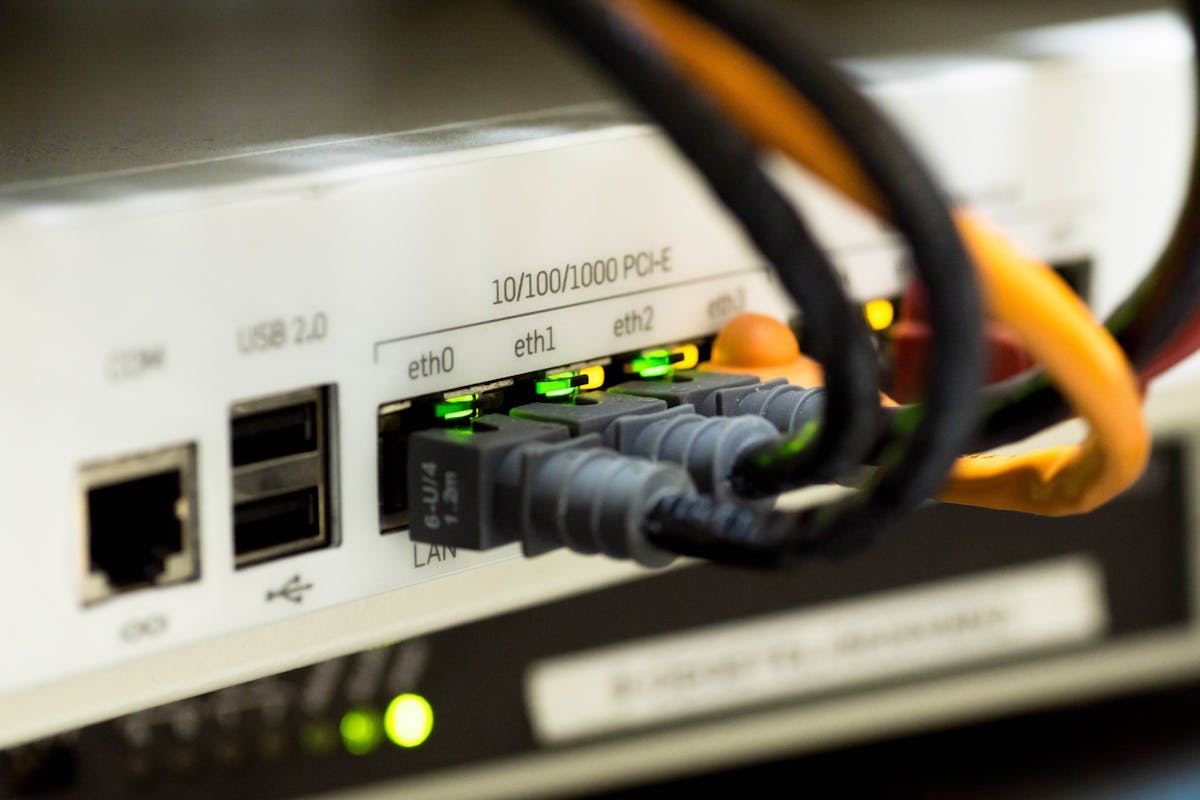
Network segmentation means dividing your network into isolated sections where devices can’t communicate unless explicitly allowed. This limits the blast radius of a compromise.
Typical network segments:
Work Network (VLAN 10) – Computers, work laptops, phones
– Full internet access
– Access to local servers
– Can’t be accessed by IoT or guests
IoT Network (VLAN 20) – Smart home devices, TVs, cameras
– Internet access only (no local network access)
– Can’t talk to work devices
– Can’t access local servers
Guest Network (VLAN 30) – Visitors, untrusted devices
– Internet access only
– Complete isolation from everything else
– Limited bandwidth
Server Network (VLAN 40) – NAS, home server, development VMs
– Can be accessed from work network
– Firewall rules control what services are exposed
– No internet access unless required
Lab Network (VLAN 50) – Test devices, experimental projects
– Isolated from everything
– Optional internet access
– Safe space to break things
Implementing VLANs
Requirements:
– Managed switch that supports VLANs (or router with built-in switch)
– Router/firewall that supports VLANs (pfSense, OPNsense, Firewalla)
– WiFi access points that support multiple SSIDs with VLAN tagging
Managed Switches:
TP-Link TL-SG108E – $40 (8-port gigabit)
Netgear GS308E – $50 (8-port gigabit with PoE option)
TP-Link TL-SG2008P – $90 (8-port with PoE for APs)
Mikrotik CRS328-24P-4S+ – $399 (24-port with 10G SFP+)
WiFi Access Points with VLAN Support:
TP-Link EAP660 HD – $150
– WiFi 6, multiple SSIDs with VLAN tags
– PoE powered
– Managed through Omada controller
Ubiquiti UniFi U6 Pro – $179
– WiFi 6E, VLAN support
– UniFi controller manages multiple APs
– PoE powered
Firewall Rules for VLANs
Each VLAN needs firewall rules defining what traffic is allowed.

Example ruleset:
Work VLAN (10) – Allow:
– All outbound internet
– Access to Server VLAN (40) on specific ports
– DNS to pfSense/Pi-hole
– Block everything else
IoT VLAN (20) – Allow:
– Outbound internet only
– DNS to pfSense/Pi-hole
– Block all local network access
– Block all inbound from other VLANs
Guest VLAN (30) – Allow:
– Outbound internet only
– DNS to pfSense/Pi-hole
– Rate limit bandwidth
– Block everything else
Server VLAN (40) – Allow:
– Inbound from Work VLAN on specific ports
– Outbound internet for updates
– Block all other access
This configuration ensures compromised IoT devices can’t pivot to work machines, guests stay isolated, and servers are only accessible from work devices.
VPN: Secure Remote Access
When working remotely or on public WiFi, a VPN encrypts all traffic and routes it through your home network (or a commercial VPN provider).
Two VPN use cases:
VPN Server (Home → You) – Access home network remotely
– Secure access to local services (NAS, servers)
– Encrypted traffic on public WiFi
– Bypass geographic restrictions
– Self-hosted, complete control
VPN Client (You → Commercial Service) – Privacy and anonymity
– Hide IP address and location
– Encrypt all traffic from ISP monitoring
– Bypass censorship
– Requires trust in VPN provider
Self-Hosted VPN Server: WireGuard
WireGuard is the modern VPN protocol—fast, secure, and much simpler than OpenVPN. It’s built into recent Linux kernels and available as packages for pfSense, OPNsense, and Firewalla.
Setup on pfSense/OPNsense:
1. Install WireGuard package
2. Generate server and client keys
3. Configure WireGuard interface and tunnel
4. Create client configuration files
5. Import into WireGuard clients (mobile apps or desktop)
Setup on Firewalla:
1. Open Firewalla app
2. Go to Settings → VPN Server → WireGuard
3. Enable and generate configuration
4. Scan QR code with WireGuard app (iOS/Android)
WireGuard advantages over OpenVPN:
– Much faster (less CPU overhead)
– Simpler configuration (fewer settings)
– Better battery life on mobile
– Faster connection/reconnection
– More secure cryptography
WireGuard client apps:
– WireGuard for iOS (free)
– WireGuard for Android (free)
– WireGuard for macOS/Windows/Linux (free)
Commercial VPN Services
For privacy and anonymity (hiding from ISPs, bypassing censorship), commercial VPN services route your traffic through their servers worldwide.
Recommended services for engineers:
Mullvad VPN – €5/month (~$5.50)
– No logs, privacy-focused
– Adam accounts (no email required)
– Pay with cash or crypto
– Fast, reliable
– WireGuard and OpenVPN
ProtonVPN – $9.99/month (Plus plan)
– Made by ProtonMail team
– No logs, based in Switzerland
– Secure Core (double-hop VPN)
– Free tier available
– Port forwarding support
IVPN – $60/year (~$5/month)
– Privacy-focused, no logs
– Multi-hop support
– WireGuard and OpenVPN
– Transparent privacy policy
What to avoid:
– Free VPN services (they sell your data)
– VPNs owned by data mining companies
– VPNs with questionable jurisdiction
– VPNs that log connection data
Complete Security Setup Recommendations
Here are three complete setups optimized for different scenarios and budgets.
Budget Security Setup ($200-$300)
For: Home office, learning, basic protection
Firewalla Purple SE – $239
– Network security appliance
– IDS/IPS, ad blocking, VPN server
– Network segmentation
– No additional hardware needed
Or Build:
Raspberry Pi 4 (4GB) – $55
MicroSD 32GB – $8
Pi-hole for ad/malware blocking
Plus:
TP-Link TL-SG108E Switch – $40
TP-Link EAP610 WiFi 6 AP – $100
Total: ~$203 DIY or $239 Firewalla
This setup provides:
– Network-wide ad and malware blocking
– Basic network segmentation
– WiFi with VLAN support
– VPN server capability
Professional Setup ($600-$900)
For: Engineers, small offices, multi-gig internet
Protectli Vault 6 Port – $479
– pfSense/OPNsense firewall
– 6x gigabit ports
– IDS/IPS capable
– VPN server
TP-Link TL-SG2008P PoE Switch – $90
– 8 ports, 4 with PoE
– VLAN support
– Powers WiFi APs
TP-Link EAP660 HD WiFi 6 AP – $150
– Multiple VLANs/SSIDs
– PoE powered
– Managed centrally
Raspberry Pi 4 for Pi-hole – $55
Total: ~$774
This setup provides:
– Full firewall control with pfSense/OPNsense
– IDS/IPS (Suricata)
– Advanced network segmentation
– Ad blocking with Pi-hole
– Professional-grade WiFi
– VPN server with WireGuard
Enterprise-Grade Home Setup ($1,200-$1,800)
For: Small teams, heavy users, multi-gig internet
QOTOM i5 with 2.5GbE – $599
– Multi-gig capable firewall
– Powerful enough for IDS/IPS at 2.5Gbps
– pfSense/OPNsense
Mikrotik CRS328-24P-4S+ – $399
– 24-port managed switch with PoE
– 10G SFP+ uplinks
– Advanced VLAN features
Ubiquiti UniFi U6 Enterprise x2 – $360
– WiFi 6E, 2.5GbE uplink
– Multiple AP for coverage
– VLAN support
Raspberry Pi 4 for Pi-hole – $55
Total: ~$1,413
This setup provides:
– Multi-gigabit firewall throughput
– IDS/IPS at full speed
– 24 ports for complex networks
– 10G uplinks for future-proofing
– Enterprise WiFi coverage
– Full monitoring and logging
Practical Security Recommendations
Start with the basics:
1. Change default router passwords
2. Update all firmware (router, switches, APs)
3. Enable WPA3 on WiFi (or WPA2 if devices don’t support WPA3)
4. Disable WPS (WiFi Protected Setup)
5. Disable UPnP (Universal Plug and Play)
6. Change default SSID to something non-identifying
Layer your security:
– Firewall with proper rules (Firewalla or pfSense)
– DNS filtering (Pi-hole, NextDNS, or pfBlockerNG)
– Network segmentation (VLANs for IoT, guest, work)
– Intrusion detection (Suricata on pfSense/OPNsense)
– VPN for remote access (WireGuard)
– Regular updates and monitoring
Monitor and maintain:
– Check firewall logs weekly
– Review blocked domains monthly
– Update firmware and signatures regularly
– Test backups of firewall configuration
– Document your network (VLANs, IPs, rules)
What not to do:
– Don’t expose services directly to internet without VPN
– Don’t reuse passwords across devices
– Don’t trust IoT devices on main network
– Don’t ignore security updates
– Don’t forward ports without understanding implications
Getting Started Today
The practical path:
Week 1: If you want simplicity, buy Firewalla and set it up. If you want control, buy a Protectli Vault and install pfSense/OPNsense. Both approaches work—choose based on time and interest.
Week 2: Set up Pi-hole on a Raspberry Pi or configure pfBlockerNG on your firewall. Enable DNS filtering and watch ad/tracking domains get blocked automatically.
Week 3: Create VLANs for IoT devices and guests. Buy a managed switch and WiFi AP with VLAN support if your current hardware doesn’t support it.
Week 4: Configure IDS/IPS (Suricata) and enable monitoring. Set up VPN server for remote access. Test everything to ensure it works.
Network security isn’t a one-time setup—it’s an ongoing process. But the initial investment in proper firewall, DNS filtering, and network segmentation dramatically reduces your attack surface and gives you visibility into what’s happening on your network.
—
Affiliate Disclaimer {#affiliate-disclaimer}
This post contains Amazon affiliate links. When you purchase through these links, we earn a small commission at no extra cost to you. This helps support our content creation and allows us to keep providing detailed technical guides. We only recommend products we’ve researched or used ourselves.
—
Related Guides:
– VR/AR for Engineers and Programmers (2026)
– Complete Home Office Setup for Remote Work
About the Author
Adam engineering professional with 12 years of multi-disciplinary experience.
This guide was written by an engineer with hands-on experience across chemical, mechanical, electrical, and software engineering disciplines. Currently serving as an Engineering Manager leading technical teams.
Professional background:
- Bachelor of Science, Chemical Engineering
- 12 years industry experience: pharmaceutical development, battery technology, process engineering
- Cross-disciplinary expertise: mechanical, electrical, software, simulation, AI/ML
- Engineering management: team leadership, vendor evaluation, project execution
Content classification:
- ⭐ Own & Use – Personally owned, 6+ months testing
- 💼 Professional Experience – Used extensively in engineering work
- 📊 Engineering Analysis – Thorough technical evaluation