
By Engi | Chemical Engineer, BS | Engineering Manager
Last Updated: February 5, 2026
Note: This post contains affiliate links (disclaimer).
Laptops slow down over time. Applications take longer to load, boot times stretch to minutes, and battery life drops to an hour or less. The typical response is buying a new laptop for $800-$1,500, but three simple upgrades can transform a slow laptop into a fast, usable machine for $100-$200.
Adding RAM eliminates constant disk swapping when multitasking. Replacing a mechanical hard drive with an SSD makes everything dramatically faster—boot times drop from 2 minutes to 15 seconds. Installing a new battery restores mobility and eliminates the constant search for power outlets.
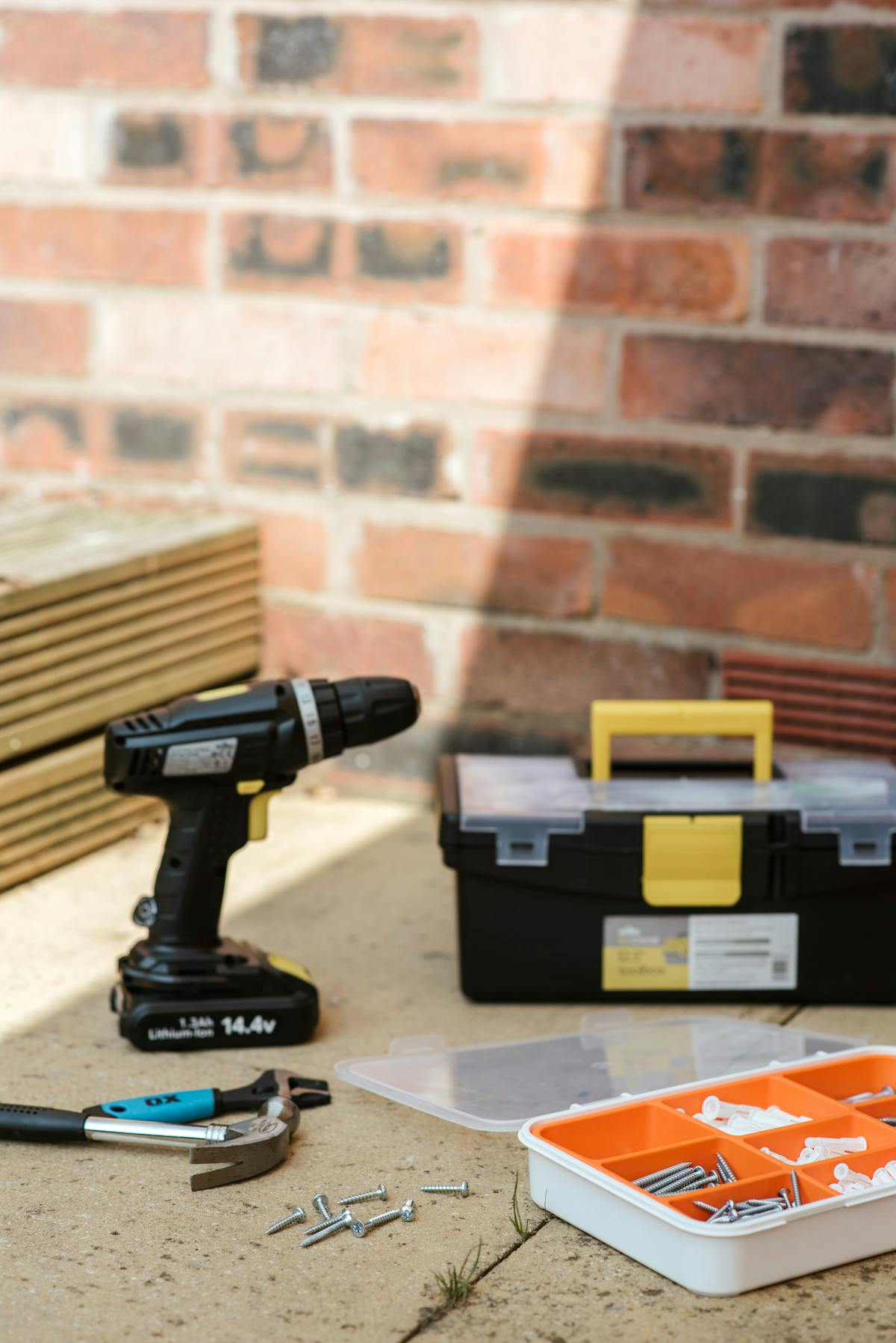
These upgrades are straightforward—no soldering, no advanced skills required. If you can use a screwdriver, you can upgrade a laptop. The tools cost $30, the parts cost $100-$200 total, and the time investment is 30 minutes to 2 hours depending on difficulty.
This guide covers practical laptop upgrades: identifying which upgrades your laptop supports, buying compatible parts, step-by-step installation procedures, and what performance improvements to expect. Whether you’re extending the life of a 5-year-old laptop or maximizing a recent purchase, here’s how to make your laptop faster and more usable.
Why Upgrade Instead of Replace
Cost: New laptops cost $800-$2,000. Upgrading RAM ($40), SSD ($80), and battery ($50) totals $170. The savings are obvious.
Performance: Modern SSDs and 16GB+ RAM make 5-year-old laptops feel brand new. CPU and GPU rarely bottleneck everyday tasks—RAM and storage are the limiting factors for most users.
Environmental impact: Laptop manufacturing consumes significant resources and energy. Extending device lifespan by 2-3 years through upgrades reduces e-waste and manufacturing demand.
Familiarity: You already know your laptop’s quirks, have software configured how you want it, and all your files are organized. Upgrading preserves this while improving performance.
Learning: Understanding laptop internals and performing upgrades yourself builds valuable technical skills. You’ll be more confident troubleshooting future issues.
Data preservation: Upgrading doesn’t require reinstalling Windows or transferring files (unless doing fresh OS install). Your system stays exactly as configured.
When upgrades don’t make sense: Laptops with soldered RAM, glued batteries, or proprietary SSDs (some ultra-thin models). Check upgradeability before buying.
Identifying Upgrade Compatibility
Before buying parts, verify your laptop supports the upgrades you want.
Finding Your Laptop Model
Exact model number is essential. “Dell Inspiron” isn’t specific enough—you need “Dell Inspiron 15 5570” or similar.
Where to find model:
– Sticker on bottom of laptop
– BIOS/UEFI (press F2/Del/F12 during boot)
– Windows: System Information (search “System Information”)
– Command line: `wmic csproduct get name`
– macOS: About This Mac → System Report
Checking RAM Compatibility
How much RAM can your laptop support?
1. Search “[laptop model] specifications” → find official spec sheet
2. Look for “Maximum Memory” or “Max RAM”
3. Note RAM type (DDR4, DDR5) and speed (3200MHz, 4800MHz, etc.)
Example:
“Lenovo ThinkPad T480 specifications” → Max 32GB DDR4-2400 SODIMM
Crucial System Scanner:
Visit crucial.com/upgrade-finder → runs scan → recommends compatible RAM
What if RAM is soldered?
Many ultrabooks solder RAM to motherboard (non-upgradeable). Check spec sheet for “Soldered” or “Onboard” memory. If all RAM is soldered, upgrade isn’t possible.
Checking SSD Compatibility
What storage interface does your laptop use?
M.2 NVMe – Most modern laptops (2018+)
– Small rectangular slot on motherboard
– Fastest interface (3000-7000 MB/s)
– Most common form factor
M.2 SATA – Some older laptops
– Same physical slot as NVMe but different protocol
– Slower (up to 550 MB/s)
– Less common now
2.5″ SATA – Older laptops (pre-2018)
– Same connector as desktop 2.5″ drives
– Easy to replace
– Up to 550 MB/s
How to identify:
1. Search “[laptop model] SSD upgrade” → find guides/videos
2. Check spec sheet for “Storage Interface” or “Drive Type”
3. Open laptop bottom panel and look at current drive
Can you add a second drive?
Some laptops have space for two drives (M.2 + 2.5″ SATA). Check service manual or teardown videos.
Checking Battery Compatibility
Internal vs External Battery:
External – Slides out from bottom (rare on modern laptops)
Internal – Requires opening laptop (most common now)
Finding compatible battery:
1. Search “[laptop model] replacement battery” on Amazon
2. Check reviews for compatibility confirmation
3. Note voltage (11.1V, 14.8V, etc.) and capacity (mAh or Wh)
4. Match part numbers if possible
Warning: Avoid ultra-cheap batteries. Look for brands with warranties and positive reviews. Cheap batteries fail quickly or worse—catch fire.
RAM Upgrade: Step-by-Step
RAM upgrades are the easiest laptop upgrade—minimal disassembly, low risk, immediate performance improvement.

When to Upgrade RAM
Symptoms of insufficient RAM:
– Constant disk activity (LED always on)
– Slow performance when many programs open
– Browser tabs reloading frequently
– Task Manager shows >80% RAM usage
– Swapping/paging activity (Task Manager → Performance → Memory)
How much RAM do you need?
8GB – Bare minimum for Windows 11/macOS (light use only)
16GB – Sweet spot for most users (multitasking, programming, light content creation)
32GB – Heavy users (video editing, virtual machines, heavy multitasking)
64GB – Professionals (4K video editing, 3D rendering, data science)
Buying Compatible RAM
What to buy:
DDR4 laptops (most 2015-2023 laptops):
Crucial 16GB DDR4-3200 SODIMM – $25 (single stick)
Kingston HyperX 32GB DDR4-3200 Kit – $55 (2x16GB)
DDR5 laptops (2022+ newer laptops):
Crucial 16GB DDR5-4800 SODIMM – $35 (single stick)
Crucial 32GB DDR5-4800 SODIMM – $70 (single stick)
Buying tips:
– Match RAM speed to what laptop supports (3200MHz, 4800MHz, etc.)
– Higher speeds work but may run at lower speed
– Buy single large stick or matching pair
– Crucial and Kingston are reliable brands
– Check reviews for compatibility with your specific laptop
Installation Process
Tools needed:
– Phillips #0 or #1 screwdriver
– Plastic spudger or guitar pick (for clips)
Step-by-step:
1. Prepare
– Power off laptop completely
– Unplug AC adapter
– Remove external battery if applicable
– Ground yourself (touch metal object or use anti-static wrist strap)
2. Access RAM slots
– Remove bottom panel screws (keep organized—some may be different lengths)
– Gently pry off bottom panel with spudger
– Locate RAM slots (usually center of motherboard, covered by metal clips)
3. Remove old RAM (if replacing)
– Push metal clips outward simultaneously
– RAM will pop up at 45° angle
– Pull RAM out gently
4. Install new RAM
– Align RAM notch with slot notch (only fits one way)
– Insert at 45° angle
– Press down firmly until clips snap closed
– RAM should be flat/horizontal when properly seated
5. Test and reassemble
– Replace bottom panel
– Install screws
– Boot laptop
– Enter BIOS (press F2/Del during boot)
– Verify RAM detected at correct speed and capacity
– Boot to OS, check Task Manager/Activity Monitor
Common issues:
– RAM not detected: Not fully seated—push down harder until clips close
– Blue screen/crashes: Incompatible RAM or bad stick—try one stick at a time
– Wrong capacity shown: Some RAM may be soldered—combined soldered + removable capacity
SSD Upgrade: Step-by-Step
SSD upgrades deliver the most noticeable performance improvement—boot times, application launches, and file operations all become dramatically faster.

When to Upgrade Storage
Symptoms needing SSD upgrade:
– Boot time >1 minute
– Applications take 10+ seconds to launch
– File copying is very slow
– Constant disk activity (100% usage in Task Manager)
– Still using mechanical hard drive (HDD)
Performance expectations:
HDD (mechanical drive):
– Read/write: 80-160 MB/s
– Boot time: 60-120 seconds
– Application launch: 5-20 seconds
SATA SSD:
– Read/write: 500-550 MB/s
– Boot time: 15-30 seconds
– Application launch: 1-5 seconds
NVMe SSD:
– Read/write: 3000-7000 MB/s
– Boot time: 10-20 seconds
– Application launch: <2 seconds
Buying Compatible SSD
Determine interface:
– M.2 NVMe (most common, fastest)
– M.2 SATA (physically same as NVMe but slower)
– 2.5″ SATA (older laptops)
M.2 NVMe SSDs (most laptops 2018+):
Budget option:
Crucial P3 1TB M.2 NVMe – $60
– Gen 3, up to 3500 MB/s read
– Good for everyday use
Best value:
Samsung 980 Pro 1TB M.2 NVMe – $80
– Gen 4, up to 7000 MB/s read
– Excellent performance and reliability
High capacity:
Crucial P3 Plus 2TB M.2 NVMe – $120
Samsung 980 Pro 2TB M.2 NVMe – $150
2.5″ SATA SSDs (older laptops):
Crucial MX500 1TB 2.5″ SATA – $65
Samsung 870 EVO 1TB 2.5″ SATA – $80
WD Blue 1TB 2.5″ SATA – $60
Capacity recommendations:
– 500GB – Minimum for Windows + programs
– 1TB – Sweet spot for most users
– 2TB – Media libraries, large game collections
Cloning vs Fresh Install
Cloning (easier):
– Copies entire drive to new SSD
– Everything stays exactly as is
– Boots Windows immediately after swap
– Requires cloning software and USB adapter
Fresh install (cleaner):
– Starts with fresh Windows installation
– Removes accumulated junk and bloatware
– Requires reinstalling programs
– Faster and cleaner long-term
Tools for cloning:
– Macrium Reflect Free (Windows)
– Clonezilla (free, bootable)
– Samsung Data Migration (Samsung SSDs)
– Acronis True Image (included with some SSD purchases)
USB adapter for cloning:
Sabrent M.2 NVMe Enclosure – $20
UGREEN 2.5″ SATA Enclosure – $12
Installation Process
Tools needed:
– Phillips screwdriver
– M.2 screw (usually included with laptop)
Cloning process (before installation):
1. Connect new SSD via USB adapter
2. Run cloning software
3. Select source drive (current laptop drive)
4. Select destination (new SSD)
5. Start clone process (30 min – 2 hours depending on size)
6. Verify clone completed successfully
Physical installation (M.2 NVMe):
1. Power off laptop, remove battery
2. Remove bottom panel
3. Locate M.2 slot (small horizontal slot on motherboard)
4. Remove screw holding current drive
5. Pull current drive out at 45° angle
6. Insert new drive at 45° angle (notch aligns one way only)
7. Press down flat
8. Install M.2 screw to secure drive
9. Replace bottom panel
Physical installation (2.5″ SATA):
1. Power off laptop, remove battery
2. Remove bottom panel
3. Locate 2.5″ drive bay (usually has caddy/bracket)
4. Disconnect SATA connector
5. Remove mounting screws from caddy
6. Remove old drive from caddy
7. Install new drive in caddy
8. Reinstall mounting screws
9. Reconnect SATA connector
10. Replace bottom panel
First boot after installation:
If cloned:
– Should boot directly to Windows
– Verify all files present
– Run Disk Management to extend partition if needed
If fresh install:
– Boot from Windows installation USB
– Follow Windows setup wizard
– Install drivers (download from manufacturer website)
– Reinstall applications
Post-Installation Optimization
Enable TRIM (usually automatic):
– Open Command Prompt as Administrator
– Run: `fsutil behavior query DisableDeleteNotify`
– Should return `DisableDeleteNotify = 0` (TRIM enabled)
Check SSD health:
– Download CrystalDiskInfo (free)
– Shows SSD health status and temperature
– Monitor over time
Use old drive as external storage:
– Install in USB enclosure
– Format and use for backups or extra storage
Battery Replacement: Step-by-Step
Laptop batteries degrade over time—capacity drops, charge cycles increase, and runtime decreases. Replacement restores mobility and eliminates battery warnings.
When to Replace Battery
Signs battery needs replacement:
– Full charge lasts <2 hours (was 6+ hours when new)
– Battery percentage drops rapidly (90% to 20% in minutes)
– “Replace Battery” warning in Windows
– Laptop won’t boot on battery power
– Battery physically swollen (replace immediately—fire hazard)
Checking battery health:
Windows:
– Open Command Prompt
– Run: `powercfg /batteryreport`
– Open generated HTML report
– Check “Design Capacity” vs “Full Charge Capacity”
– <60% of design capacity = replace soon
macOS:
– Hold Option, click battery icon
– Shows “Condition: Normal/Replace Soon/Replace Now”
Buying Compatible Battery
Where to find compatible battery:
1. Search “[exact laptop model] replacement battery” on Amazon
2. Check manufacturer’s parts website
3. Verify voltage matches (11.1V, 14.8V, etc.)
4. Check capacity (mAh or Wh)—higher is better
5. Read reviews for compatibility
Battery options:
OEM (Original Equipment Manufacturer):
– Most expensive
– Guaranteed compatibility
– Usually highest quality
– Longest warranty (1-2 years)
Third-party branded:
– Mid-price range
– Good quality from reputable brands
– 1-year warranty typical
– Most common choice
Generic/unbranded:
– Cheapest
– Quality varies wildly
– Avoid unless necessary
– Check reviews carefully
Example batteries:
Lenovo ThinkPad T480 Battery – $40
Dell XPS 15 9500 Battery – $60
HP Pavilion 15 Battery – $35
MacBook Pro 13″ A1502 Battery – $45
Installation Process
Tools needed:
– Phillips screwdriver
– Plastic spudger
– Patience (some batteries are glued)
External battery (older laptops):
1. Power off laptop
2. Slide release latches
3. Remove old battery
4. Insert new battery
5. Boot and verify charging
Internal battery (most modern laptops):
Step-by-step:
1. Prepare
– Power off completely
– Unplug AC adapter
– Ground yourself
2. Access battery
– Remove bottom panel screws
– Carefully pry off bottom panel
– Locate battery (usually large rectangle)
3. Disconnect battery
– Find battery connector (ribbon cable to motherboard)
– Gently disconnect connector (pull straight out or lift latch)
– Photo connector orientation for reassembly
4. Remove old battery
– Remove mounting screws (usually 4-6)
– If glued: Gently pry with spudger (don’t puncture cells)
– Slowly work battery free (heat gun helps soften adhesive if stuck)
5. Install new battery
– Position new battery in bay
– Install mounting screws (don’t overtighten)
– Connect battery connector to motherboard
– Ensure connector fully seated
6. Test before reassembly
– Plug in AC adapter
– Press power button
– Verify laptop boots
– Check battery detected in OS
– Confirm charging works
7. Reassemble
– Replace bottom panel
– Install all screws
– Boot normally
Battery calibration (recommended):
1. Charge to 100%
2. Leave plugged in for 2 hours
3. Unplug and drain to 0% (let laptop shut off)
4. Leave off for 2 hours
5. Charge to 100% without interruption
6. Repeat 2-3 cycles for accurate battery meter
Battery Safety
Swollen batteries:
– Bulging battery is dangerous (can catch fire)
– Replace immediately
– Don’t charge swollen battery
– Dispose at e-waste recycling center
Disposal:
– Never throw batteries in trash
– Take to electronics recycling
– Best Buy and many retailers accept batteries
– Check earth911.com for local recycling
Charging new batteries:
– Don’t drain to 0% regularly (shortens lifespan)
– Keep between 20-80% for longevity
– Full charge cycles (0-100%) only for calibration
– Modern batteries don’t need “break-in” period
Complete Upgrade Packages
Here are recommended upgrade combinations for common scenarios.
Budget Refresh ($100-$150)
For: 5+ year old laptop with 8GB RAM and HDD
Crucial 16GB DDR4-3200 – $25
Crucial P3 1TB NVMe SSD – $60
Generic replacement battery – $35 (search your model)
Total: ~$120
Performance gain:
– 2x RAM (8GB → 16GB)
– 10x+ storage speed (HDD → NVMe)
– Full-day battery life restored
This transforms an unusable slow laptop into a capable machine for general use, programming, and light content creation.
Performance Upgrade ($200-$300)
For: 3-5 year old laptop, moderate use
Kingston 32GB DDR4-3200 Kit – $55
Samsung 980 Pro 1TB NVMe – $80
OEM replacement battery – $60 (search your model)
Sabrent USB Enclosure – $20 (for old SSD)
Total: ~$215
Performance gain:
– 4x RAM (8GB → 32GB)
– Top-tier NVMe performance
– OEM quality battery
– Old SSD becomes external drive
Handles video editing, virtual machines, heavy multitasking, and professional workflows.
Maxed Out Upgrade ($300-$400)
For: Recent laptop, maximum performance
Crucial 64GB DDR5-4800 Kit – $140
Samsung 980 Pro 2TB NVMe – $150
Premium OEM battery – $70
Thermal paste replacement – $7
Total: ~$367
Performance gain:
– Maximum RAM (64GB for heavy workflows)
– 2TB fast storage
– Fresh thermal paste for better cooling
– New OEM battery
For professionals doing 4K video editing, 3D rendering, data science, or running multiple VMs simultaneously.
Tools You’ll Need
iFixit Mako Driver Kit – $35
– 64-bit set covers all laptop screws
– Precision and durability
Anti-Static Wrist Strap – $6
– Prevents ESD damage
Plastic Spudgers – $10
– For prying panels without damage
USB to M.2 NVMe Enclosure – $20
– Clone old drive to new SSD
Total tool investment: ~$71 (reusable for all future upgrades)
Performance Before and After
Real-world improvements from upgrades:
Boot time:
– HDD: 90 seconds → NVMe SSD: 15 seconds
– Improvement: 6x faster
Application launch (Photoshop):
– HDD: 25 seconds → NVMe SSD: 4 seconds
– Improvement: 6x faster
Large file copy (5GB):
– HDD: 80 MB/s (62 seconds) → NVMe: 3500 MB/s (1.4 seconds)
– Improvement: 44x faster
Multitasking responsiveness:
– 8GB RAM: Constant disk swapping, laggy
– 16GB RAM: Smooth, no lag
– 32GB RAM: Zero slowdowns with 20+ tabs, multiple apps
Battery life:
– Degraded battery: 1-2 hours
– New battery: 6-8 hours
– Improvement: 4-6x longer runtime
Getting Started
Week 1: Research your laptop model. Check upgradeability (RAM, SSD interface, battery). Verify what’s currently installed.
Week 2: Buy compatible RAM and SSD. Order battery if needed. Purchase tools if you don’t have them.
Week 3: Perform RAM upgrade (easiest, 15 minutes). Test for stability.
Week 4: Clone drive to new SSD. Install SSD. Verify boot and performance.
Week 5: Replace battery if purchased. Calibrate new battery.
Result: Laptop feels brand new. Performance rivaling new machines costing 3-5x more. Extended usable life by 2-3+ years.
Laptop upgrades are the highest ROI tech investments you can make. For $100-$300 and a few hours of work, you get laptop performance that would cost $1,000+ to buy new. Engineers and technically inclined people should embrace upgrades—we have the skills, the tools are affordable, and the benefits are substantial.
—
Affiliate Disclaimer {#affiliate-disclaimer}
This post contains Amazon affiliate links. When you purchase through these links, we earn a small commission at no extra cost to you. This helps support our content creation and allows us to keep providing detailed technical guides. We only recommend products we’ve researched or used ourselves.
—
Related Guides:
– Right to Repair for the Technically Inclined (2026)
– Home/Office Network Security for Engineers (2026)
– Complete Home Office Setup for Remote Work
About the Author
Adam engineering professional with 12 years of multi-disciplinary experience.
This guide was written by an engineer with hands-on experience across chemical, mechanical, electrical, and software engineering disciplines. Currently serving as an Engineering Manager leading technical teams.
Professional background:
- Bachelor of Science, Chemical Engineering
- 12 years industry experience: pharmaceutical development, battery technology, process engineering
- Cross-disciplinary expertise: mechanical, electrical, software, simulation, AI/ML
- Engineering management: team leadership, vendor evaluation, project execution
Content classification:
- ⭐ Own & Use – Personally owned, 6+ months testing
- 💼 Professional Experience – Used extensively in engineering work
- 📊 Engineering Analysis – Thorough technical evaluation