
By Engi | Chemical Engineer, BS | Engineering Manager
Last Updated: February 5, 2026
Note: This post contains affiliate links (disclaimer).
Network Attached Storage (NAS) isn’t just for backing up family photos. For engineers, developers, and creators, a properly configured NAS becomes the foundation of a productive workflow—centralized file storage, automated backups, development test environment, CI/CD server, media streaming hub, and home lab core all in one box.
This guide covers everything from personal home NAS setups ($200-400) through team development servers ($800-1,500) to advanced home lab configurations. We’ll explain what NAS can do, which hardware you need, and how to configure systems for specific workflows.
Whether you’re a developer who needs reliable backups, an engineer running simulations, or a creator managing terabytes of video footage, this guide shows you exactly which NAS to buy and how to use it.
NAS Use Cases: What Can You Actually Do?
| Use Case | Storage Needed | Performance Tier | Typical Budget |
|---|---|---|---|
| Personal Backup & File Sync | 2-4TB | Entry-level | $200-400 |
| Media Server (Plex/Jellyfin) | 4-12TB | Mid-range | $400-800 |
| Home Lab & Development | 2-8TB | Mid-range | $500-1,000 |
| Small Team Dev Server | 4-16TB | High-performance | $800-1,500 |
| Content Creation Archive | 12-48TB | High-capacity | $1,000-2,500 |
Understanding NAS: The Basics
A NAS is a specialized computer dedicated to storing and serving files over your network. Think of it as a personal cloud you control.
What Makes NAS Different from External Drives?
External hard drive: Connects to one computer via USB. When computer sleeps, drive is inaccessible. Manual backups. Single point of failure.
NAS: Connects to network via Ethernet. Always-on and accessible from any device. Automated backups. RAID protection against drive failure. Multiple users simultaneously.
Cloud storage: Accessible anywhere but requires internet. Recurring monthly costs. Limited storage (5GB free, 2TB for $10/month). Privacy concerns.
NAS advantage: One-time cost. Unlimited storage capacity. Complete privacy. Fast local access (Gigabit Ethernet = 125MB/s vs 10-50MB/s internet upload).
RAID Explained Simply
RAID (Redundant Array of Independent Disks) protects your data when drives fail—and drives WILL fail eventually.
RAID 0 (Striping): Two drives act as one big drive. Fast, but if one drive fails, you lose everything. Don’t use this for important data.
RAID 1 (Mirroring): Two drives with identical copies. If one fails, you don’t lose data. Usable capacity = size of one drive. Good for 2-bay NAS.
RAID 5: Three or more drives. Can survive one drive failure. Usable capacity = (N-1) × drive size. Most common for 4-bay NAS.
RAID 6: Four or more drives. Can survive TWO drive failures. Usable capacity = (N-2) × drive size. Better protection for large arrays.
Example with 4× 4TB drives:
- RAID 0: 16TB usable, no protection
- RAID 1: 4TB usable, survives 3 drive failures
- RAID 5: 12TB usable, survives 1 drive failure
- RAID 6: 8TB usable, survives 2 drive failures
Recommendation: RAID 1 for 2-bay, RAID 5 for 4-bay, RAID 6 for 5+ bay systems.
Personal Home NAS ($200-400)

Entry-level NAS for personal backup, file synchronization, and light media streaming.
Best Pre-Built: Synology DS223j ($180 + drives)
A 2-bay NAS that’s incredibly easy to set up and use. Synology’s DiskStation Manager (DSM) operating system is the most user-friendly NAS software.
Specs:
- Dual-core 1.7GHz CPU
- 1GB RAM (not upgradable)
- 2× drive bays (up to 16TB per drive = 32TB total)
- 2× Gigabit Ethernet ports
- 2× USB 3.2 ports
What you can do:
- Automated backups from Windows/Mac/Linux
- File synchronization (like Dropbox but your own)
- Photo management with face recognition
- Basic Plex media server (1-2 streams)
- Download client (torrents, Usenet)
- Document collaboration
Add drives: WD Red Plus 4TB (2-pack) ($200) for 4TB usable in RAID 1
Total cost: $380 for 4TB of protected storage
Why Synology: Setup takes 10 minutes. Web interface is intuitive. Apps for everything (backup, sync, photo management, streaming). Excellent documentation. Active community. Automatic updates.
Budget Alternative: TerraMaster F2-423 ($200 + drives)
More powerful than Synology DS223j at similar price. Quad-core CPU, 4GB RAM (upgradable to 16GB), 2.5GbE networking.
Trade-off: TOS (TerraMaster OS) isn’t as polished as Synology DSM. Smaller community, fewer apps. But hardware specs are better for the money.
Choose TerraMaster if: You’re comfortable with technology and want better hardware value. Choose Synology if you want easiest setup and best software experience.
DIY Budget NAS: Raspberry Pi + USB Drives ($150-250)
For absolute minimum budget, a Raspberry Pi 5 can function as a basic NAS.
Parts needed:
- Raspberry Pi 5 8GB ($80)
- Powered USB 3.0 hub ($30)
- 2× External 4TB USB drives ($120)
- MicroSD card for OS ($10)
Software: OpenMediaVault (free NAS OS)
Limitations: USB drives slower than SATA. Pi can only handle light loads. No hardware RAID. Good for learning NAS concepts, not production use.
Best for: Experimenting with NAS before investing in proper hardware. See our budget servers guide for more Raspberry Pi projects.
Media Server NAS ($400-800)
For streaming 4K video, managing large media libraries, and handling multiple simultaneous streams.
Best for Media: Synology DS923+ ($550 + drives)
Synology DiskStation DS923+
A 4-bay NAS with enough power for Plex transcoding, large storage capacity, and room to expand.
Specs:
- AMD Ryzen R1600 (dual-core 2.6GHz, 3.1GHz burst)
- 4GB RAM (upgradable to 32GB)
- 4× drive bays (up to 72TB total)
- 2× Gigabit Ethernet (link aggregation for 2Gbps)
- 2× M.2 NVMe slots for SSD cache
Why this for media:
- Hardware transcoding support (converts video formats on-the-fly)
- Can handle 3-4 simultaneous 4K streams
- RAID 5 with 4× 4TB drives = 12TB usable storage (2,000-3,000 movies)
- Plex app runs natively, no separate server needed
- Fast enough for other tasks simultaneously
Recommended drive config: 4× WD Red Plus 6TB ($600) = 18TB usable in RAID 5
Total cost: $1,150 for 18TB media server
Budget Media Server: QNAP TS-464 ($500 + drives)
QNAP TS-464
Similar specs to DS923+ but slightly cheaper. QNAP QTS operating system is more feature-rich but has steeper learning curve than Synology.
Specs: Intel N5105 quad-core, 8GB RAM (upgradable), 4× bays, 2.5GbE networking
QNAP advantages: More virtualization features, better for home lab. Slightly cheaper hardware.
QNAP disadvantages: Interface less intuitive. Security update history not as strong as Synology.
Home Lab & Development NAS ($500-1,000)
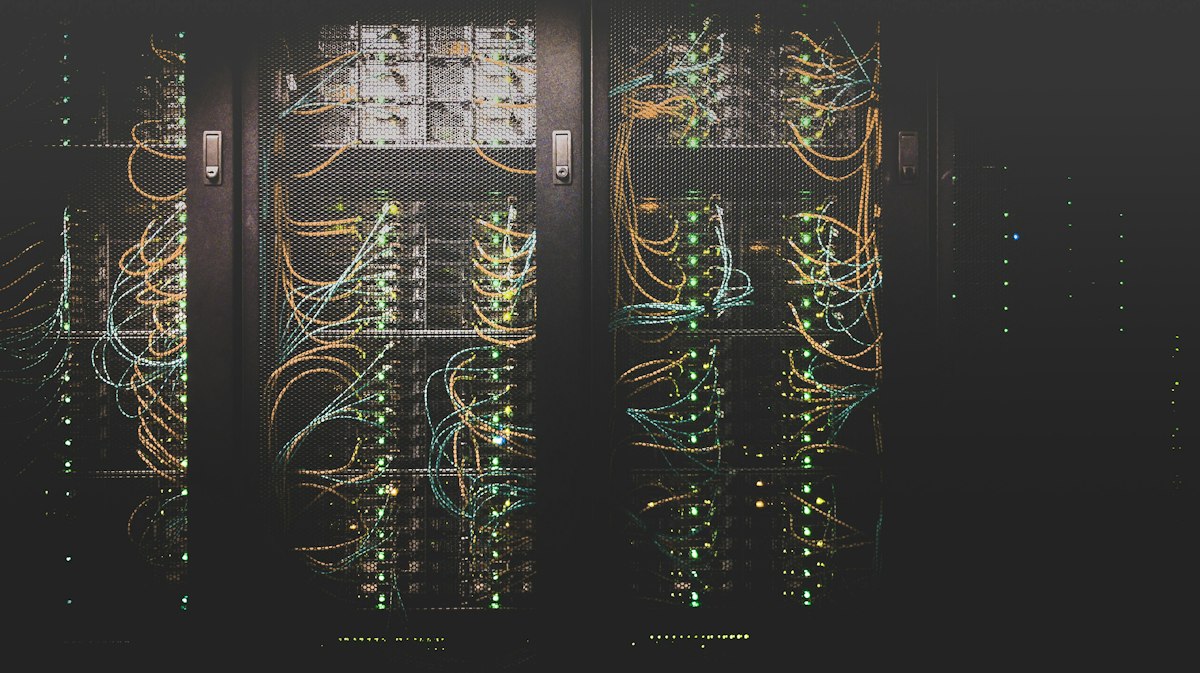
Running virtual machines, Docker containers, CI/CD pipelines, and development environments.
What Home Lab NAS Enables
Virtual machine host: Run Ubuntu, Windows Server, pfSense router, whatever you need for learning or development.
Docker container platform: GitLab CI/CD, Jenkins, databases, web services—all in containers.
Development environment: Create, destroy, snapshot environments instantly. Break things without consequences.
Testing infrastructure: Simulate production architecture locally. Load testing, failover testing, disaster recovery practice.
Learning platform: Hands-on experience with Kubernetes, networking, security, automation—skills employers want.
Best Home Lab NAS: Custom Build (~$600)
For home lab, building your own gives you better specs for the money and more control over configuration.
Parts list:
- Case: Silverstone DS380 ($140) – 8 hot-swap bays in mini-ITX
- Motherboard: ASRock B560M-ITX/ac ($120) – 6× SATA ports
- CPU: Intel i3-10100 ($110) – Quad-core with hardware transcoding
- RAM: 32GB DDR4 ($80) – Essential for VMs
- Boot drive: 120GB SSD ($20) – OS only
- PSU: Corsair SF450 ($90) – SFX form factor
Total: $560 (before storage drives)
Add storage: Start with 2× WD Red 4TB ($160) in RAID 1, add more later
Total cost: $720 for capable home lab NAS
Software: TrueNAS CORE (free, open source) or Unraid ($59-129 depending on drive count)
Why this build:
- 32GB RAM runs 4-6 VMs comfortably
- Quad-core CPU handles multiple services
- 8 drive bays allow massive expansion
- Standard PC hardware = easy upgrades
- Can add GPU later for transcoding or machine learning
Pre-Built Alternative: Synology DS1522+ ($700 + drives)
Synology DiskStation DS1522+
If you prefer pre-built convenience, the DS1522+ offers excellent home lab capabilities.
Specs: AMD Ryzen R1600, 8GB RAM (upgradable to 32GB), 5× bays, 10GbE expansion option, PCIe slot for upgrades
Advantages: Synology DSM is incredibly stable. Virtual Machine Manager app is user-friendly. Docker integration is excellent. No assembly required.
Home lab workflows on Synology:
- Virtual Machine Manager: Run Ubuntu, Windows, pfSense VMs
- Docker: Run GitLab, Jenkins, databases in containers
- Kubernetes: Deploy K3s cluster for learning
- Git server: Self-hosted repository
- CI/CD: Automated builds and deployments
Team Development NAS ($800-1,500)
Centralized storage and development tools for small teams (3-10 developers).
What Team Development NAS Provides
Centralized version control: Self-hosted GitLab or Gitea. No monthly per-user fees.
CI/CD pipelines: Automated testing and deployment. Build artifacts stored locally.
Shared development environments: Team accesses same databases, test environments. Consistent configurations.
Project file storage: CAD files, datasets, documentation. Fast local access (no internet dependency).
Backup and disaster recovery: Automated snapshots. Quick recovery from mistakes.
Best for Teams: QNAP TVS-h674 ($1,100 + drives)
QNAP TVS-h674
A 6-bay NAS with serious performance for team workloads.
Specs:
- Intel Core i5-12400 (6-core, 12-thread)
- 16GB RAM (upgradable to 64GB)
- 6× drive bays
- 2× 2.5GbE ports (upgradable to 10GbE)
- 2× M.2 NVMe slots for SSD cache
- PCIe slot for expansion (10GbE, GPU)
Why this for teams:
- Fast CPU handles multiple simultaneous users
- Enough RAM to run VMs, containers, and services simultaneously
- SSD cache accelerates frequently accessed files
- Can upgrade to 10GbE for fast file transfers (CAD, video)
- RAID 6 with 6× 4TB drives = 16TB usable with 2-drive failure protection
Recommended setup: 6× WD Red Pro 4TB ($780) + 2× 500GB NVMe for cache ($100)
Total cost: $1,980 for team development server
Team NAS Use Cases
Software development team (5 developers):
- GitLab CE for version control
- Jenkins for CI/CD
- Docker registry for container images
- PostgreSQL/MongoDB for development databases
- Shared test environments
Engineering team (CAD work):
- Fast 10GbE connectivity for large assemblies
- Version control for CAD files (DWG, STEP, SLDPRT)
- Shared material libraries
- Rendering queue
- Backup snapshots every hour
Content creation studio:
- Fast scratch space for active projects
- Archive storage for completed work
- Collaborative workflows (Adobe CC integration)
- Preview rendering
- Automated backup to cloud
Content Creation Archive ($1,000-2,500)
For photographers, videographers, and creators managing massive media libraries.
High-Capacity Build: 8-Bay Custom NAS
When you need 20TB+ usable storage for raw video, photo archives, and project files.
Parts list:
- Case: Fractal Define 7 XL ($200) – 18 drive bays
- Motherboard: ASRock B660 Pro RS ($140) – 8× SATA
- CPU: Intel i5-12400 ($180)
- RAM: 64GB DDR4 ($160)
- PSU: Corsair RM750x ($110)
- Storage: 6× WD Red Plus 8TB ($1,080) – 40TB usable in RAID 6
Total cost: $1,870 for 40TB usable storage
Software: TrueNAS SCALE (free) or Unraid ($129)
Why this works for content creation:
- 40TB stores 8,000+ hours of 4K footage or 1,000,000+ RAW photos
- Fast enough for direct editing of 4K video (with 10GbE)
- RAID 6 survives two simultaneous drive failures
- Can expand to 18 drives (90TB+ usable)
- Snapshot system protects against accidental deletion
Pre-Built Alternative: Synology DS1821+ ($800 + drives)
Synology DiskStation DS1821+
An 8-bay NAS that’s easier to set up than custom build but costs more for equivalent storage.
With 8× 8TB drives: Total ~$2,200, 56TB usable in RAID 6 (or 42TB with better protection)
NAS Hard Drives: What Actually Matters
NAS-Specific vs Desktop Drives
Desktop drives (WD Blue, Seagate Barracuda): Designed for 8 hours/day use. Not rated for RAID. Fail faster in NAS environment. Cost $15-20/TB.
NAS drives (WD Red, Seagate IronWolf): Designed for 24/7 operation. RAID-optimized firmware. Vibration resistance. Cost $20-25/TB.
Is the premium worth it? For anything more than 2-drive setup: absolutely. Desktop drives fail much faster in NAS arrays, and failed drives cause downtime and data risk.
Drive Recommendations
Budget NAS: WD Red Plus ($20-22/TB)
CMR (conventional magnetic recording), reliable, good warranty. Available in 2-14TB sizes.
Performance NAS: WD Red Pro ($24-28/TB)
7200 RPM (vs 5400 RPM in Red Plus), faster performance, 5-year warranty. Available in 2-22TB.
Alternative: Seagate IronWolf ($22-26/TB)
Comparable to WD Red Plus. Some prefer IronWolf, some prefer Red—both are good.
Avoid: WD Red SMR drives (older models). SMR performs poorly in RAID. Stick with Red Plus (CMR) or better.
SSDs in NAS
SSD cache: 2× 500GB NVMe SSDs ($100 total)
Accelerate frequently accessed files. Significant performance boost for database queries, virtualization, and multi-user access.
All-SSD NAS: 4× 2TB SATA SSDs ($400)
For home lab where capacity isn’t primary concern. Much faster VM performance. Quieter operation. Lower power consumption.
Network Configuration
Gigabit Ethernet (1GbE)
Real-world speed: ~110-125 MB/s (megabytes per second)
Good for: General file storage, backups, media streaming (even 4K), small team collaboration
Limitations: Slow for direct editing of large video files or huge CAD assemblies
2.5 Gigabit Ethernet (2.5GbE)
Real-world speed: ~280-300 MB/s
Good for: 4K video editing, large file transfers, medium-size team
Requirements: NAS with 2.5GbE port + 2.5GbE switch ($100-150) + computer with 2.5GbE (or USB adapter $40)
10 Gigabit Ethernet (10GbE)
Real-world speed: ~900-1,100 MB/s (over 1 GB/s!)
Good for: Professional video editing, large team file sharing, direct editing of 8K footage
Requirements: NAS with 10GbE card + 10GbE switch ($300-500) + 10GbE PCIe card in computer ($100-150)
Cost: $500-800 for full 10GbE setup
Worth it? Only if you regularly work with 50GB+ files. For most home/small team use, 2.5GbE is the sweet spot between cost and performance.
Software Platforms Compared
Synology DSM
Best for: Beginners, people who want “just works” experience
Pros: Most user-friendly interface. Excellent app ecosystem. Strong security track record. Great documentation.
Cons: More expensive hardware. Locked to Synology devices.
QNAP QTS
Best for: Advanced users who want more features and flexibility
Pros: More virtualization features. Better hardware value. More customization options.
Cons: Less intuitive interface. Security history not as strong. Steeper learning curve.
TrueNAS CORE/SCALE
Best for: Tech-savvy users, home lab enthusiasts, those who want maximum control
Pros: Free and open source. Runs on any hardware. Most powerful for advanced features. ZFS filesystem (excellent data integrity).
Cons: Requires more technical knowledge. No pre-built hardware (DIY only). Steeper learning curve.
Unraid
Best for: Flexible storage growth, mixed drive sizes, home media servers
Pros: Can use different sized drives in same array. Easy to add capacity. Excellent Docker/VM support. Active community.
Cons: Costs $59-129 depending on drive count. Not traditional RAID (parity + individual drives). Slower than RAID for some workloads.
Frequently Asked Questions
Do I really need a NAS or is cloud storage enough?
Cloud storage is better for: Accessing files from anywhere, collaboration with people outside your network, hands-off backup.
NAS is better for: Large amounts of data (cloud gets expensive above 2TB), fast access to files (no internet dependency), privacy (you control the data), one-time cost vs monthly subscription.
Best approach: NAS for primary storage + cloud for off-site backup. Use NAS daily, cloud protects against fire/theft.
Cost comparison (5TB storage, 3 years):
- Google Drive: $25/month × 36 months = $900
- Dropbox: $20/month × 36 months = $720
- 2-bay NAS + 2× 4TB drives: $380 one-time (4TB usable in RAID 1)
NAS pays for itself in 15-18 months, then it’s free storage forever.
Can I just use an external hard drive?
External drives work for basic backup but lack NAS advantages:
- Must be plugged into one computer (not network accessible)
- No redundancy (drive failure = data loss)
- Manual backups (easy to forget)
- Slower (USB typically slower than Gigabit Ethernet)
- No additional features (media server, VMs, apps)
External drive is fine for occasional backups. NAS is better for active use and data you can’t afford to lose.
How much storage capacity do I actually need?
Personal use: 2-4TB typically sufficient for documents, photos, personal videos. Buy 4TB, use ~2TB, have room to grow.
Media server: 4-12TB depending on library size. 4K movies average 50-80GB each, 1080p movies 8-15GB.
Development/home lab: 2-8TB sufficient unless storing large datasets. VMs and containers don’t need massive space.
Content creation: 12-48TB for professionals. Raw video eats space fast (1 hour 4K footage = 110-300GB).
Rule of thumb: Estimate current usage, multiply by 3-4x for growth room. Drives are cheapest when you buy initially—adding drives later costs more.
Should I buy pre-built NAS or build my own?
Buy pre-built if: You want easy setup, excellent software/apps, don’t want to troubleshoot hardware, need it working ASAP.
Build your own if: You want maximum performance per dollar, need specific features, enjoy DIY projects, already comfortable with PC building.
Value comparison: DIY typically 30-40% cheaper for equivalent specs. But pre-built includes warranty, support, and polished software.
Is RAID a backup?
No. RAID protects against drive failure, not data loss.
RAID doesn’t protect against:
- Accidental deletion
- File corruption
- Ransomware
- Fire/theft/flood
- Simultaneous multi-drive failure
- User error
Proper backup strategy (3-2-1 rule):
- 3 copies of important data
- 2 different storage types (NAS + external drive, or NAS + cloud)
- 1 off-site copy (cloud, or drive stored elsewhere)
NAS with RAID is one copy. Add automated cloud backup for true protection.
Can I expand storage later?
Yes, but with caveats:
Adding drives to empty bays: Easy. Just insert drive, add to RAID array or create new volume.
Replacing smaller drives with larger: Possible but tedious. Replace drives one at a time, rebuild RAID after each, then expand volume. Takes days/weeks depending on capacity.
Best approach: Buy largest drives you can afford initially. Adding capacity later is expensive—drives don’t get cheaper, they get higher capacity.
How noisy is a NAS?
2-bay consumer NAS: Quiet. Comparable to desktop PC. Can run in bedroom or office comfortably.
4-6 bay NAS: Noticeably louder. Multiple drives + fans. Fine in office, might be annoying in living space.
8+ bay or rackmount: Loud. Server-class fans. Needs dedicated space (basement, closet, garage).
Mitigation: Most NAS have fan speed controls and drive spin-down options. Can schedule noisy operations (backups, scrubs) for night time.
The Bottom Line
Network Attached Storage isn’t just glorified external drives—it’s centralized infrastructure that improves workflows, protects data, and enables capabilities impossible with individual drives or cloud storage alone.
Start simple ($200-400): 2-bay Synology for backup and file sync. Learn NAS basics without major investment.
Grow to capable ($400-800): 4-bay NAS for media server, home lab, or small team development. RAID 5 protection and room to expand.
Invest in serious ($800-2,000): 6-8 bay NAS for team development, content creation, or advanced home lab. Professional-grade performance and capacity.
Where to prioritize budget:
- Most important: Reliable NAS drives (WD Red Plus minimum), enough bays for growth
- Important: RAID protection (RAID 1 minimum, RAID 5/6 preferred), adequate RAM for intended use
- Nice to have: SSD cache, 10GbE networking, expandability
- Luxury: Hot-spare drives, UPS backup, off-site replication
The NAS that works best is the one you’ll actually use. Start with needs-appropriate capacity, ensure proper redundancy, and remember that NAS is infrastructure—it should last 5-10 years with drive replacements.
Related guides:
- Budget Servers & Workstations ($35-$600)
- Complete PC Build Guide (2026)
- Complete Home Office Setup
- Best Monitors for Developers (2026)
Invest in storage infrastructure once, benefit for years. Your data is worth protecting properly.
Related Guides:
- Laptop Upgrade Guide: Improve Your Computer with RAM, SSD, and Battery Replacements (2026)
- Right to Repair for the Technically Inclined: Fix Your Laptop, PC, and Electronics (2026)
- VR/AR for Engineers and Programmers: Setup and Development Guide to improve productivity (2026)
About the Author
Adam engineering professional with 12 years of multi-disciplinary experience.
This guide was written by an engineer with hands-on experience across chemical, mechanical, electrical, and software engineering disciplines. Currently serving as an Engineering Manager leading technical teams.
Professional background:
- Bachelor of Science, Chemical Engineering
- 12 years industry experience: pharmaceutical development, battery technology, process engineering
- Cross-disciplinary expertise: mechanical, electrical, software, simulation, AI/ML
- Engineering management: team leadership, vendor evaluation, project execution
Content classification:
- ⭐ Own & Use – Personally owned, 6+ months testing
- 💼 Professional Experience – Used extensively in engineering work
- 📊 Engineering Analysis – Thorough technical evaluation