
Note: This post contains affiliate links (disclaimer).
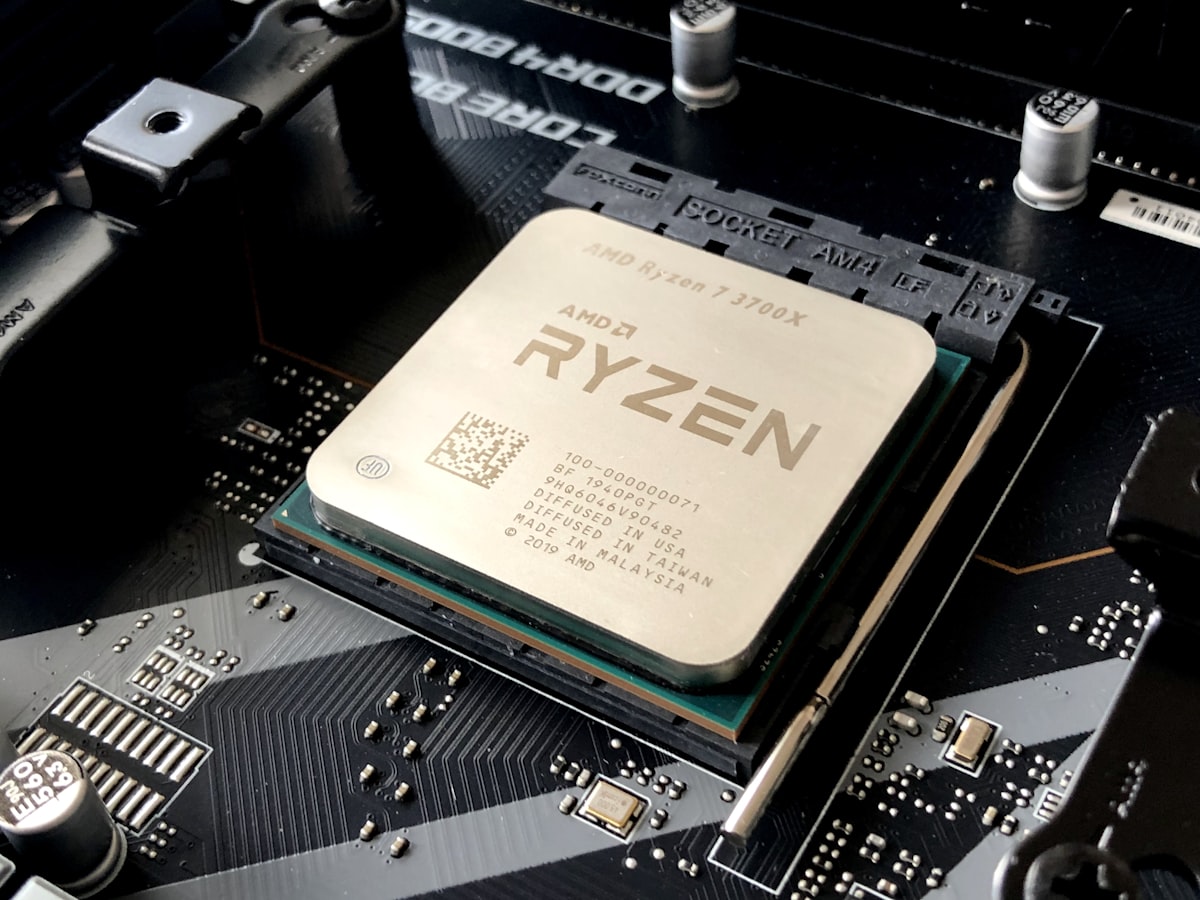
Building a PC for technical work isn’t the same as building one for gaming. A programmer doesn’t need a $1,200 GPU—they need fast compilation times. An engineer running FEA simulations needs serious CPU cores and RAM. An AI developer? They need both GPU compute power and enough RAM to not crash when loading datasets. Check out By Engi | Chemical Engineer, BS | Engineering Manager
Last Updated: February 5, 2026
My PC Building Journey: Lessons Learned the Hard Way
Before we dive into components, let me share some hard-won wisdom from building multiple systems over the years. Consider this the “things I wish someone told me before I started” section.
Size Matters (And I Learned This With Tweezers)
Here’s something nobody tells you: double-check the physical dimensions of EVERYTHING before you buy.
I once spent 45 minutes trying to plug in the front panel connectors on a micro-ATX build with tweezers because my CPU cooler was blocking access. My hands are not small, but that cramped case made me feel like I was performing surgery with oven mitts.
The GPU? Yeah, that technically fit according to the specs. What the specs didn’t mention was that it would press against the side panel, flex slightly, and make concerning creaking sounds every time I moved the computer.
Lesson learned: Check clearances for GPU length, CPU cooler height, and PSU depth. Leave yourself breathing room. Future-you will thank past-you for not creating a game of mechanical Tetris.
Dry Fit Everything (Yes, Outside the Case)
This might sound paranoid, but assemble the core components outside the case first. Motherboard, CPU, RAM, cooler, and GPU on a cardboard box. Test that it posts.
Why? Because troubleshooting a boot issue is way easier when you’re not trying to remove a motherboard from a case with eight screws, a CPU cooler blocking half of them, and cable ties you optimistically thought were “final.”
I learned this the expensive way when I had to remove everything to reseat RAM. Twice. The second time involved accidentally snapping a SATA cable because I forgot to disconnect it from the back. Good times.
Port Planning: The “Future-Proof” Build That Wasn’t
Let me tell you about my “future-proof” build from three years ago. I was so proud: high-end CPU, overbuilt motherboard, room for expansion. What could go wrong?
Fast forward two years: I wanted to add a capture card and a second NVMe drive. Turns out, my “expansion-friendly” motherboard had a quirk where using the second M.2 slot disabled two SATA ports. And the capture card? It physically blocked the last PCIe slot because the GPU was so close.
The lesson: Read the manual. Seriously. Check which slots share bandwidth, which ones disable others, and how your GPU placement affects expansion. “Future-proof” means planning for what you might add later, not just what you’re installing now.
Also, USB ports. You will never have enough USB ports. I bought a motherboard with “plenty” of USB ports. I currently have a USB hub plugged into a USB hub. Don’t be like me.
Okay, therapy session over. Let’s talk about the actual components you need.
” rel=”noopener”>PCPartPicker for more.Off-the-shelf computers rarely hit the sweet spot. Gaming PCs waste money on RGB and overkill GPUs. Workstations cost 3x more than building it yourself. And budget options? They bottleneck exactly where you need performance most.
This guide breaks down PC builds for programmers, engineers, and AI developers at three budget levels: budget-friendly ($600-800), mid-range ($1,200-1,800), and high-performance ($2,500-4,000+). We’ll also cover the ultimate build that handles all three workloads plus gaming—because sometimes you need to blow off steam after debugging for six hours straight.
–
Note on GPU Selection: This guide recommends the latest RTX 50 series GPUs for optimal performance. However, RTX 40 series and RTX 30 series cards remain completely valid choices and offer excellent value, especially for budget-conscious builds. A used RTX 3090 (24GB VRAM) or RTX 4090 can provide similar capabilities at lower cost. The 50 series offers improved efficiency and performance, but don’t feel pressured to buy the absolute latest—choose based on your budget and availability.
Understanding Your Workload
Before diving into builds, understand what actually matters for your work:
Programmers Need:
- Fast compilation: Multi-core CPU (8+ cores for C++/Rust projects)
- Quick IDE responsiveness: Fast SSD, 16GB+ RAM
- Container/VM work: 32GB RAM for Docker/VMs
- Not critical: GPU (unless doing graphics/game dev)
Engineers Need:
- CAD performance: Professional GPU (Quadro/Pro series) or high-end gaming GPU
- Simulation work: High core-count CPU, 32GB+ RAM
- 3D rendering: Both CPU and GPU power
- Reliability: ECC RAM for mission-critical work (optional)
AI Developers Need:
- GPU compute: NVIDIA GPU with CUDA (RTX series, 12GB+ VRAM)
- Large datasets: 32GB+ RAM minimum, 64GB+ preferred
- Fast storage: NVMe SSD for dataset loading
- Training workloads: Multi-core CPU for data preprocessing
PC Builds for Programmers
Programmers benefit from fast compilation, quick IDE loading, and the ability to run multiple development environments simultaneously. GPU needs are minimal unless you’re doing graphics work.
Budget Build: $650-800
Perfect for: Web development, scripting languages, light backend work
- CPU: AMD Ryzen 5 5600 – 6 cores, excellent single-thread performance ($130-150)
- Motherboard: B550 motherboard ($90-120)
- RAM: 16GB DDR4 3200MHz (2x8GB) ($40-50)
- Storage: 1TB NVMe SSD ($50-70)
- GPU: AMD RX 6400 or use integrated graphics ($100-130, optional)
- Case: Budget ATX case with good airflow ($50-70)
- PSU: 550W 80+ Bronze PSU ($50-70)
Total: ~$650-800
Why these specs: The Ryzen 5600 handles compilation quickly without breaking the bank. 16GB RAM is sufficient for VS Code, multiple Chrome tabs, and Docker containers. The fast NVMe SSD means your IDE and build tools load instantly.
Mid-Range Build: $1,200-1,500
Perfect for: Full-stack development, mobile app development, moderate DevOps work
- CPU: AMD Ryzen 7 5800X – 8 cores, great for parallel compilation ($250-300)
- Motherboard: X570 motherboard ($150-200)
- RAM: 32GB DDR4 3600MHz (2x16GB) ($80-100)
- Storage: 1TB NVMe Gen4 SSD + 2TB SATA SSD ($120 + $120)
- GPU: NVIDIA RTX 5060 (for occasional ML testing) ($280-320)
- Case: Quality ATX case ($80-120)
- PSU: 650W 80+ Gold PSU ($80-100)
- Cooling: Tower CPU cooler ($40-60)
Total: ~$1,200-1,500
Why these specs: 8 cores handle large codebases and aggressive parallel compilation. 32GB RAM means running multiple VMs, containers, and browser windows without slowdown. The RTX 5060 handles display output and gives you CUDA for experimenting with ML frameworks.
High-End Build: $2,500-3,000
Perfect for: Large-scale projects, kernel development, heavy virtualization
- CPU: AMD Ryzen 9 7950X – 16 cores, compilation beast ($550-650)
- Motherboard: X670E motherboard ($250-350)
- RAM: 64GB DDR5 5600MHz (2x32GB) ($200-250)
- Storage: 2TB NVMe Gen4 SSD + 4TB SATA SSD ($200 + $250)
- GPU: NVIDIA RTX 5070 ($550-650)
- Case: Premium case with excellent airflow ($120-180)
- PSU: 750W 80+ Gold PSU ($100-140)
- Cooling: 280mm AIO liquid cooler ($100-150)
Total: ~$2,500-3,000
Why these specs: 16 cores destroy compilation times on massive projects. 64GB RAM handles anything you throw at it—multiple heavy IDEs, VMs, containers, databases all running simultaneously. DDR5 provides bandwidth for rapid data processing.
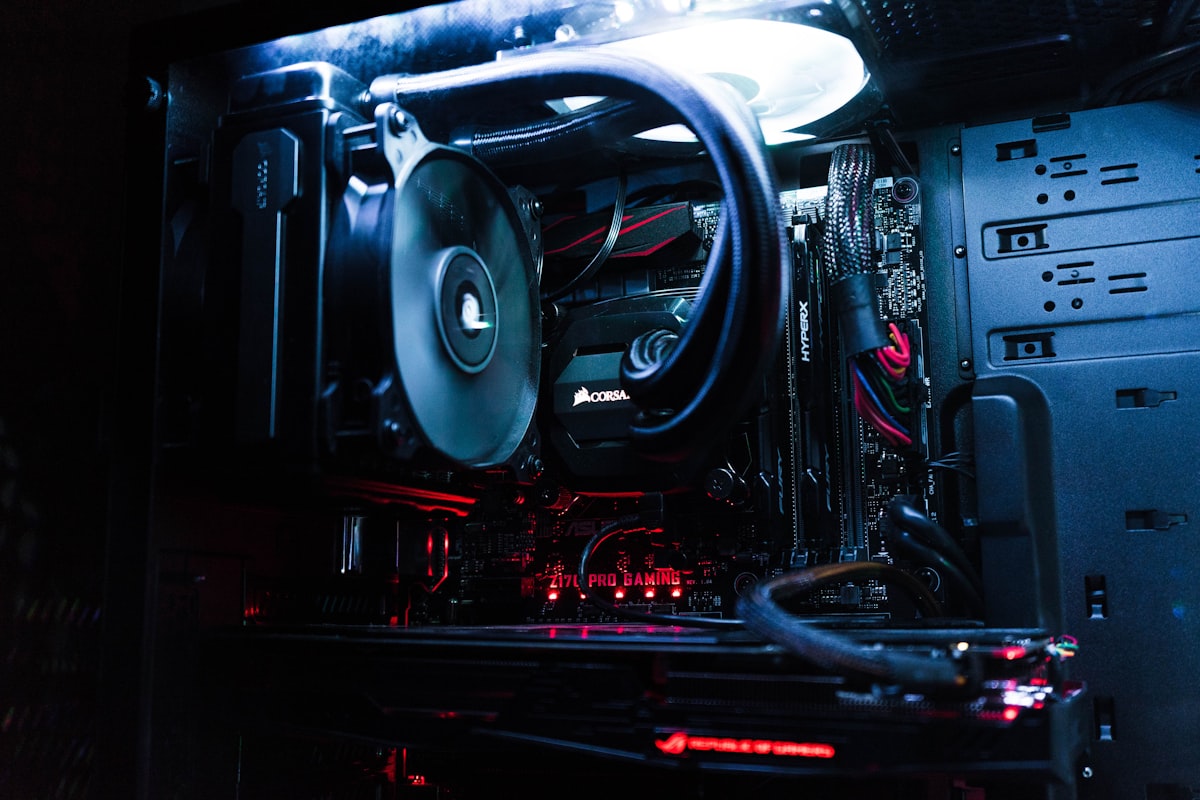
PC Builds for Engineers
Engineering workloads demand both CPU and GPU power. CAD work needs strong single-thread performance and GPU acceleration. Simulation and analysis require multi-core processing and substantial RAM.
Budget Build: $800-1,000
Perfect for: Student projects, 2D CAD, basic 3D modeling
- CPU: Intel Core i5-13400F – 10 cores, strong single-thread ($200-250)
- Motherboard: B660 motherboard ($100-140)
- RAM: 32GB DDR4 3200MHz (2x16GB) ($80-100)
- Storage: 1TB NVMe SSD ($50-70)
- GPU: NVIDIA RTX 5060 (8GB VRAM for CAD) ($280-320)
- Case: Mid-tower ATX case ($60-80)
- PSU: 650W 80+ Bronze PSU ($60-80)
Total: ~$800-1,000
Why these specs: The i5-13400F offers excellent single-thread performance for responsive CAD work. 32GB RAM handles assemblies and basic simulations. RTX 5060 provides GPU acceleration for SolidWorks, Fusion 360, and AutoCAD without costing a fortune.
Mid-Range Build: $1,800-2,200
Perfect for: Professional CAD, FEA analysis, CFD simulations
- CPU: Intel Core i7-14700K – 20 cores for simulation work ($380-450)
- Motherboard: Z790 motherboard ($200-280)
- RAM: 64GB DDR5 5600MHz (2x32GB) ($200-250)
- Storage: 2TB NVMe Gen4 SSD ($150-200)
- GPU: NVIDIA RTX 5070 Ti (12GB VRAM) ($750-850)
- Case: Quality case ($90-130)
- PSU: 850W 80+ Gold PSU ($110-150)
- Cooling: 280mm AIO cooler ($100-140)
Total: ~$1,800-2,200
Why these specs: 20 cores handle multi-threaded simulation workloads efficiently. 64GB RAM allows working with large assemblies and running multiple analyses simultaneously. RTX 5070 Ti provides excellent viewport performance and GPU-accelerated rendering.
High-End Build: $3,500-4,500
Perfect for: Complex simulations, large assemblies, professional rendering
- CPU: AMD Ryzen 9 7950X3D – 16 cores with 3D V-Cache ($600-700)
- Motherboard: X670E motherboard ($280-380)
- RAM: 128GB DDR5 6000MHz (4x32GB) ($450-550)
- Storage: 2TB NVMe Gen4 SSD + 4TB NVMe Gen4 SSD ($200 + $350)
- GPU: NVIDIA RTX 5080 (16GB VRAM) ($1,100-1,300)
- Case: Premium full tower ($150-250)
- PSU: 1000W 80+ Platinum PSU ($180-250)
- Cooling: 360mm AIO cooler ($140-200)
Total: ~$3,500-4,500
Why these specs: The 7950X3D’s massive cache dramatically improves simulation performance. 128GB RAM handles the largest assemblies and most complex analyses. RTX 5080 crushes rendering workloads and provides smooth viewport performance even with millions of polygons.
PC Builds for AI Developers
AI and machine learning work is GPU-bound. VRAM capacity determines what models you can train locally. RAM capacity affects dataset handling. CPU matters less but shouldn’t bottleneck data preprocessing.
Budget Build: $1,000-1,300
Perfect for: Learning ML, small models, experimentation
- CPU: AMD Ryzen 5 5600 – 6 cores, efficient ($130-150)
- Motherboard: B550 motherboard ($90-120)
- RAM: 32GB DDR4 3200MHz (2x16GB) ($80-100)
- Storage: 1TB NVMe SSD ($50-70)
- GPU: NVIDIA RTX 5060 Ti 16GB (16GB VRAM crucial) ($450-550)
- Case: ATX case with good airflow ($60-80)
- PSU: 650W 80+ Bronze PSU ($60-80)
Total: ~$1,000-1,300
Why these specs: The RTX 5060 Ti 16GB is the hero here—16GB VRAM lets you experiment with larger models locally. 32GB system RAM handles most datasets. The CPU is sufficient for data preprocessing without overspending.
Mid-Range Build: $2,200-2,800
Perfect for: Serious ML development, fine-tuning models, research
- CPU: AMD Ryzen 7 5800X – 8 cores for preprocessing ($250-300)
- Motherboard: X570 motherboard ($150-200)
- RAM: 64GB DDR4 3600MHz (2x32GB) ($150-200)
- Storage: 2TB NVMe Gen4 SSD ($150-200)
- GPU: NVIDIA RTX 5070 Ti Super (16GB VRAM) ($850-950)
- Case: Quality case ($90-120)
- PSU: 850W 80+ Gold PSU ($110-150)
- Cooling: Tower cooler ($50-80)
Total: ~$2,200-2,800
Why these specs: 16GB VRAM on the 4070 Ti Super handles most modern architectures. 64GB system RAM means loading large datasets without swapping. Fast NVMe storage reduces dataset loading bottlenecks during training.
High-End Build: $4,000-5,500
Perfect for: Professional ML work, large model training, production development
- CPU: AMD Ryzen 9 7950X – 16 cores ($550-650)
- Motherboard: X670E motherboard ($280-380)
- RAM: 128GB DDR5 5600MHz (4x32GB) ($450-550)
- Storage: 2TB NVMe Gen4 SSD + 4TB NVMe Gen4 SSD ($200 + $350)
- GPU: NVIDIA RTX 5090 (24GB VRAM) ($1,800-2,200)
- Case: Full tower case ($130-200)
- PSU: 1000W 80+ Platinum PSU ($180-250)
- Cooling: 360mm AIO cooler ($140-200)
Total: ~$4,000-5,500
Why these specs: The RTX 5090’s 24GB VRAM is game-changing—train models locally that previously required cloud GPUs. 128GB system RAM handles massive datasets entirely in memory. 16-core CPU crushes data preprocessing and augmentation.
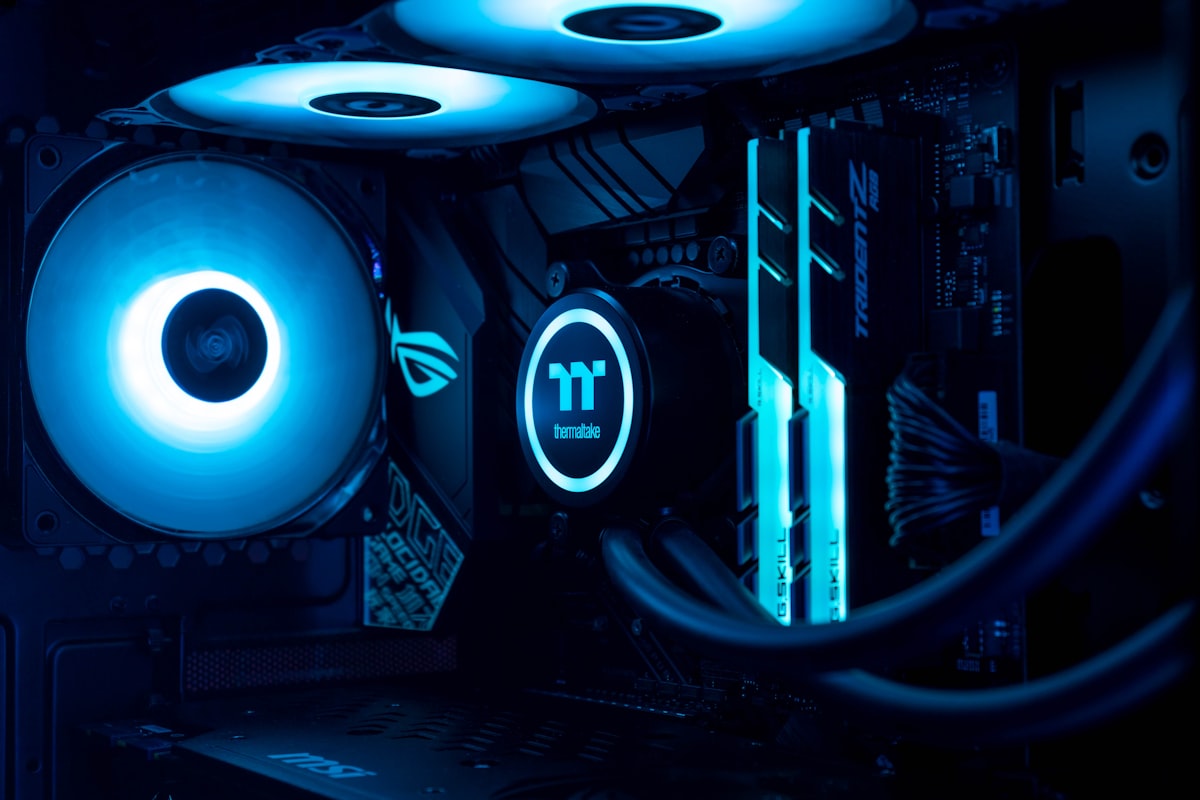
The Ultimate Build: All Three + Gaming
What if you need to compile large projects, run CAD simulations, train ML models, and play games at 4K? Here’s the build that handles everything without compromise.
The Ultimate: $5,500-7,000
Perfect for: Everything. Seriously.
- CPU: AMD Ryzen 9 7950X3D – 16 cores, 3D V-Cache for gaming ($600-700)
- Motherboard: Premium X670E motherboard with WiFi 6E ($350-450)
- RAM: 128GB DDR5 6000MHz (4x32GB) ($500-600)
- Storage: 2TB NVMe Gen5 SSD (OS/apps) + 4TB NVMe Gen4 SSD (projects) + 8TB SATA SSD (datasets/archives) ($300 + $350 + $500)
- GPU: NVIDIA RTX 5090 (24GB VRAM) ($1,800-2,200)
- Case: Premium full tower with excellent airflow ($180-280)
- PSU: 1200W 80+ Titanium PSU ($280-380)
- Cooling: Custom water cooling loop or 420mm AIO ($300-600 or $200-300)
- Extras: PCIe expansion cards, RGB lighting, premium fans ($200-400)
Total: ~$5,500-7,000
Why these specs: The 7950X3D’s massive cache benefits both gaming and simulation work. 128GB RAM handles anything—multiple VMs, large assemblies, huge datasets, all simultaneously. RTX 5090 crushes ML training, CAD rendering, and 4K gaming at 120+ FPS. Gen5 SSD for OS provides blazing fast boot and application load times.
What it handles:
- Compile Chromium in under 10 minutes
- Run FEA simulations with millions of elements
- Train GPT-class models locally
- Game at 4K 120Hz with ray tracing maxed out
- All of the above simultaneously while streaming
Component Selection Guide
CPU: AMD vs Intel
Choose AMD Ryzen when:
- You need excellent multi-core performance for compilation/simulation
- Power efficiency matters (lower electricity bills, less heat)
- You want better upgrade paths (AM5 socket supports multiple generations)
- Best for: Programmers doing parallel builds, AI developers
Choose Intel Core when:
- You prioritize single-thread performance for CAD responsiveness
- You need specific Intel-optimized software (some engineering tools)
- Slightly better gaming performance (though the gap is narrow)
- Best for: Engineers doing CAD work, gamers
GPU: NVIDIA vs AMD
Choose NVIDIA RTX when:
- You’re doing AI/ML work (CUDA required for PyTorch, TensorFlow)
- You use professional software with GPU acceleration (SolidWorks, ANSYS)
- You want ray tracing and DLSS for gaming
- Best for: AI developers (mandatory), engineers, gamers
Choose AMD Radeon when:
- Better price-to-performance for pure gaming or display output
- You don’t need CUDA (programmers without ML work)
- Open-source driver support on Linux
- Best for: Pure programmers, Linux users, budget gaming
RAM: How Much Do You Really Need?
- 16GB: Minimum for development, okay for light CAD, insufficient for AI
- 32GB: Sweet spot for programmers and student engineers, entry-level AI
- 64GB: Professional engineering work, serious AI development, heavy virtualization
- 128GB: Large simulations, massive datasets, running multiple heavy workloads simultaneously
DDR4 vs DDR5: DDR5 offers 50% more bandwidth but costs more. Worth it for high-end builds, optional for budget/mid-range.
Storage Strategy
- Primary Drive: 1-2TB NVMe Gen4 for OS, applications, active projects
- Secondary Drive: 2-4TB NVMe or SATA SSD for project archives, datasets
- Bulk Storage: 4-8TB SATA SSD or HDD for long-term storage (optional)
Skip Gen5 NVMe unless you’re doing specific workloads that benefit (large file transfers, 8K video). Gen4 is plenty fast for compilation, CAD, and ML work.
PSU Sizing
- Budget builds (no/low-end GPU): 550W sufficient
- Mid-range (RTX 5060-4070): 650-750W recommended
- High-end (RTX 5070 Ti-4080): 850W recommended
- Ultimate (RTX 5090): 1000W minimum, 1200W preferred
Get 80+ Gold or better for efficiency. Platinum/Titanium worthwhile for high-wattage builds.
Cooling Considerations
- Budget CPUs (65W): Stock cooler works, but tower cooler quieter
- Mid-range CPUs (105-125W): Tower cooler or 240mm AIO
- High-end CPUs (170W+): 280mm+ AIO or high-end air cooler
- Ultimate builds: 360mm+ AIO or custom water cooling
AIOs are quieter but cost more. Tower coolers are reliable and maintenance-free. Both work well when properly sized.

Assembly and Setup Tips
Before You Start
- Watch build guides on YouTube (Linus Tech Tips, JayzTwoCents, Paul’s Hardware)
- Have a magnetic screwdriver and cable ties ready
- Build on a non-static surface (avoid carpet)
- Install I/O shield BEFORE motherboard (everyone forgets this)
Common Mistakes to Avoid
- Not connecting CPU power: 8-pin connector near CPU socket—don’t forget it
- RAM in wrong slots: Check motherboard manual for dual-channel configuration
- Forgetting motherboard standoffs: Can short the board
- Overtightening screws: Finger-tight plus 1/4 turn is enough
- Poor cable management: Restricts airflow and looks messy
Post-Build Checklist
- Enable XMP/DOCP in BIOS for RAM to run at rated speed
- Update motherboard BIOS to latest version
- Install chipset drivers from motherboard manufacturer
- Update GPU drivers from NVIDIA/AMD website
- Run stress tests (Prime95, FurMark) to verify stability
- Check temperatures under load (CPU <85°C, GPU <80°C ideal)
Software Setup by Profession
Programmers
- OS: Windows 11 Pro (for Hyper-V), Ubuntu 22.04 LTS, or dual-boot
- Development: VS Code, Visual Studio, JetBrains suite
- Containers: Docker Desktop, WSL2 (Windows Subsystem for Linux)
- Version Control: Git, GitHub Desktop
- Utilities: Windows Terminal, PowerToys
Engineers
- OS: Windows 11 Pro (most CAD software requires Windows)
- CAD: SolidWorks, Fusion 360, AutoCAD, Inventor
- Analysis: ANSYS, COMSOL, MATLAB
- Rendering: KeyShot, V-Ray
- Utilities: PDF viewers, project management tools
AI Developers
- OS: Ubuntu 22.04 LTS or Windows 11 with WSL2
- CUDA: NVIDIA CUDA Toolkit, cuDNN
- Frameworks: PyTorch, TensorFlow, JAX
- Development: Jupyter, VS Code with Python extensions
- Utilities: Conda/Mamba, Docker for reproducible environments
Upgrade Path Planning
Build with upgrades in mind. Here’s what to prioritize:
Easiest Upgrades (Do These First)
- RAM: Add more sticks if you have empty slots
- Storage: Add more NVMe or SATA SSDs
- GPU: Easiest performance boost, just swap and install drivers
Medium Upgrades
- CPU cooler: Improves temps and noise levels
- Case fans: Better cooling and acoustics
- PSU: Needed if upgrading to power-hungry GPU
Major Upgrades (New Build Territory)
- CPU: Often requires new motherboard (socket compatibility)
- Motherboard: May require new RAM (DDR4 vs DDR5)
- CPU + Motherboard + RAM: Basically a new build, reuse GPU/storage/case/PSU
Frequently Asked Questions
Should I build or buy prebuilt?
Build if you want exactly the specs you need and save 20-30%. Buy prebuilt if you want warranty convenience and don’t mind paying extra. For technical work where specific components matter (like GPU for AI or RAM for simulations), building gives you control. For gaming-focused builds, prebuilts from System Integrators can be competitive during GPU shortages.
Can I use my build for both work and gaming?
Absolutely. The main consideration is GPU—NVIDIA cards handle both professional work and gaming well. Make sure you have enough RAM for work (32GB+) since games typically use 8-16GB. The CPU you need for technical work is often overkill for gaming, which is fine—you’ll have headroom.
How long will these builds stay relevant?
Budget builds: 3-4 years before feeling slow. Mid-range: 5-6 years with occasional GPU upgrade. High-end: 6-8 years, mainly limited by VRAM for AI work or RAM for large simulations. The storage, PSU, and case can last through multiple CPU/GPU generations.
Do I need Windows Pro or Home?
Get Pro if you need Hyper-V for virtualization, Remote Desktop hosting, or BitLocker encryption. Home is fine for most users. Engineers and programmers benefit from Pro’s features. AI developers can use Linux instead which is free.
Should I wait for next-gen CPUs/GPUs?
There’s always something better coming. If you need it now, build now. If you can wait 2-3 months and new releases are confirmed, waiting can save money or get better performance. But “waiting for next-gen” can become perpetual procrastination. Current-gen hardware is excellent.
Is building a PC difficult?
Not really. If you can follow a recipe and use a screwdriver, you can build a PC. It’s expensive LEGO—everything only fits one way. The hardest part is cable management. First build takes 3-4 hours. Watch a build guide video first and you’ll be fine. The PC will boot on first try more often than not.
Can I reuse parts from an old PC?
Maybe. Case, PSU (if not too old), and storage can be reused. RAM only if it’s the same generation (DDR4 vs DDR5). GPU can be reused temporarily. CPU/motherboard typically need upgrading together. Reusing case and storage can save $200-400.
The Bottom Line
Building a PC for technical work means understanding your workload first, then spec’ing components accordingly. Programmers benefit from fast CPUs and lots of RAM. Engineers need both CPU and GPU power for CAD and simulation. AI developers live and die by VRAM capacity.
Don’t overbuild in areas that don’t matter for your work. A programmer doesn’t need a $2,000 GPU. An engineer doing CAD doesn’t need 128GB RAM. An AI developer training small models doesn’t need a 16-core CPU. Spend money where it improves your actual workflow.
The builds in this guide are starting points. Adjust based on your specific needs, budget, and future plans. Build quality matters—proper cooling, reliable PSU, and good case airflow prevent problems down the road. Take your time with the build, manage cables properly, and enjoy the satisfaction of creating exactly the machine you need.
And remember: the best PC is the one that gets your work done efficiently without making you wait. Whether that’s a $700 budget build or a $6,000 ultimate machine depends entirely on what you’re building.
What’s your ideal build? Any components you swear by or avoid? Share your experiences in the comments!
If you’re a student looking for essential tools to go with your new PC, check out our guide to Essential Tools for Engineering Students.
Related Guides:
- Laptop Upgrade Guide: Improve Your Computer with RAM, SSD, and Battery Replacements (2026)
- Right to Repair for the Technically Inclined: Fix Your Laptop, PC, and Electronics (2026)
- VR/AR for Engineers and Programmers: Setup and Development Guide to improve productivity (2026)
About the Author
Adam engineering professional with 12 years of multi-disciplinary experience.
This guide was written by an engineer with hands-on experience across chemical, mechanical, electrical, and software engineering disciplines. Currently serving as an Engineering Manager leading technical teams.
Professional background:
- Bachelor of Science, Chemical Engineering
- 12 years industry experience: pharmaceutical development, battery technology, process engineering
- Cross-disciplinary expertise: mechanical, electrical, software, simulation, AI/ML
- Engineering management: team leadership, vendor evaluation, project execution
Content classification:
- ⭐ Own & Use – Personally owned, 6+ months testing
- 💼 Professional Experience – Used extensively in engineering work
- 📊 Engineering Analysis – Thorough technical evaluation