
Note: This post contains affiliate links (disclaimer).
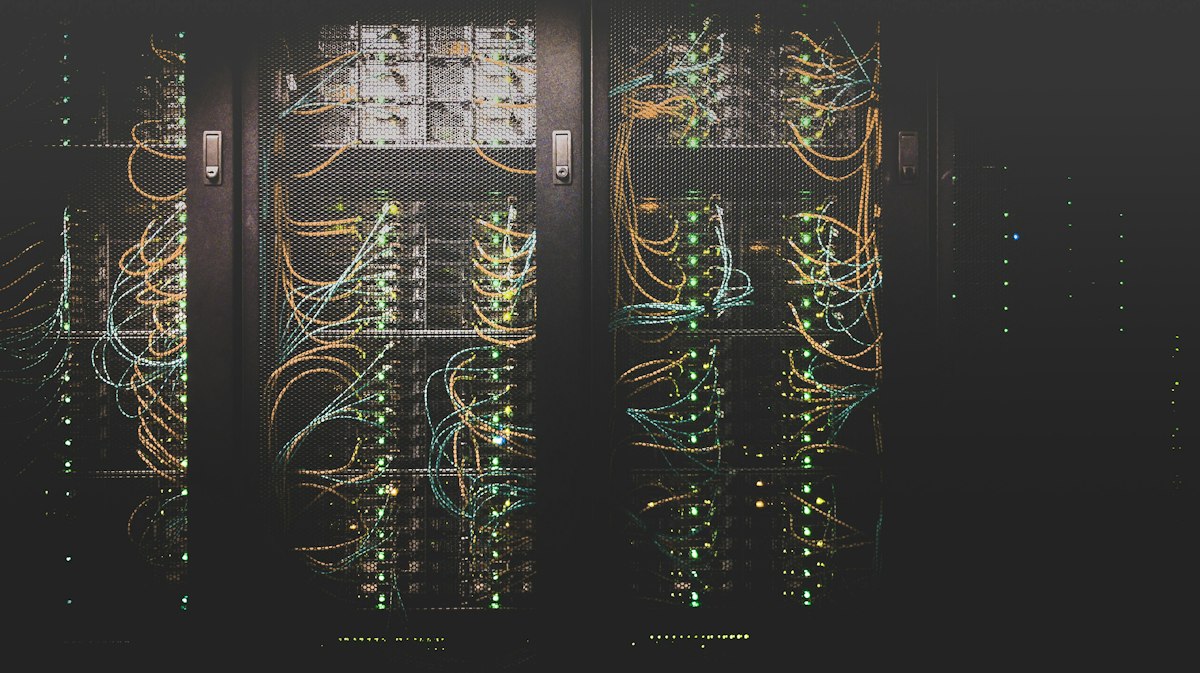
Training models locally versus burning through cloud credits is the difference between experimenting freely and checking your AWS bill every hour. But building an AI workstation isn’t like building a gaming PC—VRAM capacity matters more than clock speed, your power bill becomes a legitimate concern, and “will this fit in my case?” is a real question when dealing with 4-slot GPUs. Learn more at NVIDIA AI. Learn more at PyTorch.
This guide covers everything from budget single-GPU setups for learning to multi-GPU clusters for serious research. We’ll explore single workstations, dual-GPU configurations, and multi-machine clusters. Whether you’re fine-tuning LLMs, training computer vision models, or running reinforcement learning experiments, there’s a build here that makes sense for your workload and budget.
The math is simple: a $3,000 workstation with RTX 5090 pays for itself after training for 200 hours compared to cloud GPU costs. A $10,000 dual-GPU setup? That’s 500 hours of cloud compute. And unlike cloud instances, you own the hardware and can upgrade over time.
–
Note on GPU Selection: This guide recommends the latest RTX 50 series GPUs for optimal performance. However, RTX 40 series and RTX 30 series cards remain completely valid choices and offer excellent value, especially for budget-conscious builds. A used RTX 3090 (24GB VRAM) or RTX 4090 can provide similar capabilities at lower cost. The 50 series offers improved efficiency and performance, but don’t feel pressured to buy the absolute latest—choose based on your budget and availability.
By Engi | Chemical Engineer, BS | Engineering Manager
Last Updated: February 5, 2026
Lessons from My AI Builds: What I Wish I Knew
Let me save you some money, time, and one particularly painful electricity bill with lessons from actually building and running AI systems.
Training vs. Inference: I Built the Wrong Machine
Here’s an expensive mistake: I optimized a build for inference (running models) when I actually needed to train them. And yes, I also did the opposite on another build.
Training needs:
- Massive memory bandwidth (ECC RAM if you can afford it)
- High VRAM capacity (more important than raw compute)
- Good cooling because you’ll run 100% utilization for days
- Power efficiency matters less than raw capability
Inference needs:
- Lower latency (faster clock speeds)
- Can get by with less VRAM
- Power efficiency actually matters (you’re running 24/7)
- Can use older/cheaper hardware
I built a beautiful inference-optimized rig with a power-efficient CPU and moderate GPU… then tried to train a model on it. Five days of 100% utilization later, I had results I could’ve gotten in 18 hours on the right hardware.
The lesson: Be brutally honest about your primary use case. A jack-of-all-trades AI build is a master of none.
The Refurbished Reality Check
Unless you’re building for production (where uptime = money), consider refurbished or previous-generation hardware.
I saved $1,800 buying last-gen components for a development system. The performance difference for my use case? About 15%. The money saved let me buy a second GPU for parallel experiments.
When to buy new:
- Production systems (warranty matters)
- Cutting-edge research (need latest features)
- You’re bottlenecked NOW (can’t wait for training)
When to buy refurbished:
- Learning/development (downtime is annoying, not catastrophic)
- Experimentation (might change requirements)
- Budget builds (obvious)
My current setup: One production-grade new system for critical work, one refurbished rig for experiments. Works perfectly.
The Energy Bill That Made Me Cry
Let me tell you about the electricity bill surprise. Month 1 with my new AI rig: $180 more than usual. I thought it was an error.
It wasn’t an error.
Here’s what I learned about AI power consumption:
- AI training runs at 100% for days
- GPUs pull 300-400W each
- Add CPU, RAM, cooling… you’re at 600-800W total
- 24/7 runtime = 14-19 kWh per day
- At $0.15/kWh = $60-85/month per system
And that’s per system. I was running two. Do the math.
My energy efficiency revelations:
1. Undervolting is your friend: I reduced GPU power by 20% with only 3% performance loss. That’s 60-80W saved per GPU.
2. Schedule your training: I moved long training runs to off-peak hours where electricity is cheaper. Some utilities offer 50% off nighttime rates.
3. Consider cloud for short bursts: For one-off training jobs, cloud compute might actually be cheaper than running your hardware 24/7. I know, I know, we all want our own hardware. But sometimes AWS for 12 hours beats running your rig for 3 days.
4. Efficiency scales: A single high-end GPU often beats two mid-range GPUs in both performance and power efficiency. One RTX 4090 at 450W will outperform two RTX 3080s at 700W combined.
My current approach:
- Development/testing: Low-power mode, undervolt enabled
- Production training: Full power, scheduled during cheap electricity hours
- Quick experiments: Sometimes cloud (I’m not proud, but I’m pragmatic)
Total savings: ~$90/month in electricity. That pays for a decent cloud budget as backup.
Alright, let’s talk hardware. I promise no more therapy sessions after this.
Understanding AI Workload Requirements
Before spending thousands on hardware, understand what actually bottlenecks AI training:
VRAM Is King
Your GPU’s VRAM determines what models you can train. Out of VRAM? Your training crashes. Simple as that.
- 8GB VRAM: Small models, basic computer vision, learning
- 12GB VRAM: Medium models, practical computer vision, fine-tuning
- 16GB VRAM: Larger models, serious NLP work, multi-modal models
- 24GB VRAM: LLM fine-tuning, large vision models, production experiments
- 48GB+ VRAM: Multiple GPUs, research-scale models, near-unlimited experimentation
System RAM Matters Too
Dataset preprocessing, data augmentation, and loading batches all happen in system RAM before hitting the GPU:
- 32GB: Minimum for serious work
- 64GB: Comfortable for most projects
- 128GB+: Large datasets, multiple simultaneous experiments, cluster nodes
Storage Speed
Slow storage creates GPU starvation—your expensive GPU sits idle waiting for data. For AI work:
- NVMe Gen4: Minimum for training data
- Multiple NVMe drives: Separate OS/code from datasets
- RAID 0 NVMe: For massive datasets with high throughput needs
- 10GbE NAS: For cluster setups sharing datasets
CPU Requirements
CPUs handle data preprocessing, augmentation, and batch preparation. For AI work, you need:
- 8+ cores: Keeps single GPU fed
- 12+ cores: Good for dual GPU setups
- 16+ cores: Multi-GPU workstations
- PCIe lanes: Matters for multi-GPU (more on this later)
Single GPU Builds
Most AI developers start here. A single powerful GPU handles the majority of deep learning projects without the complexity of multi-GPU setups.
Budget Build: Learning & Experimentation ($1,200-1,600)
Perfect for: Learning deep learning, computer vision projects, small NLP models, Kaggle competitions
- GPU:NVIDIA RTX 5060 Ti 16GB ($500-550)
- 16GB VRAM is crucial—8GB version is too limiting
- Handles ResNet, EfficientNet, small transformers
- Fine-tune BERT, GPT-2 scale models
- CPU:AMD Ryzen 7 5700X ($180-220)
- 8 cores sufficient for data preprocessing
- Good value, lower power consumption
- Motherboard:B550 motherboard ($100-140)
- PCIe 4.0 support for fast GPU
- RAM:64GB DDR4 3600MHz ($150-180)
- 2x32GB for dual channel
- Room to upgrade to 128GB later
- Storage: 1TB NVMe Gen4 (OS/code) + 2TB NVMe Gen4 (datasets) ($100 + $150)
- Case: ATX case with good airflow ($70-100)
- PSU:750W 80+ Gold PSU ($90-120)
- Overhead for future GPU upgrade
- Cooling: Tower CPU cooler ($40-60)
Total: ~$1,200-1,600
What you can train: Image classification networks, object detection models (YOLO, Faster R-CNN), sequence models (LSTMs, small transformers), fine-tune BERT-base, train GPT-2 scale models, most Kaggle competitions.
Mid-Range Build: Serious Development ($2,500-3,200)
Perfect for: Professional ML development, research projects, production model development
- GPU:NVIDIA RTX 5090 32GB ($1,800-2,100)
- 24GB VRAM is transformative
- Train models you thought needed cloud GPUs
- 2-3x faster training than 4060 Ti
- CPU:AMD Ryzen 9 7900X ($400-480)
- 12 cores for aggressive data augmentation
- PCIe 5.0 support (future-proof)
- Motherboard:X670E motherboard ($250-320)
- Quality VRM for CPU
- Multiple M.2 slots
- RAM:128GB DDR5 5600MHz ($450-550)
- 4x32GB configuration
- Load entire datasets in RAM
- Storage: 2TB NVMe Gen4 (OS) + 4TB NVMe Gen4 (datasets) ($180 + $320)
- Case: Full tower case (5090 is HUGE) ($120-180)
- PSU:1000W 80+ Platinum PSU ($180-240)
- 5090 can spike to 450W+
- Cooling: 280mm AIO cooler ($100-140)
Total: ~$2,500-3,200
What you can train: Large vision transformers, LLM fine-tuning (LLaMA 7B, Mistral 7B), diffusion models, multi-modal models, research-scale experiments. This GPU handles tasks that required A100 cloud instances just a year ago.
High-End Single GPU: Maximum Performance ($3,500-4,500)
Perfect for: Full-time AI research, rapid iteration, professional production work
- GPU: NVIDIA RTX 5090 32GB ($1,800-2,100)
- CPU:AMD Ryzen 9 7950X ($550-650)
- 16 cores for heavy preprocessing
- Doubles as workstation for other tasks
- Motherboard:Premium X670E motherboard ($350-450)
- 10GbE networking for NAS/cluster expansion
- Multiple M.2 Gen5 slots
- RAM:192GB DDR5 6000MHz ($700-900)
- 6x32GB configuration
- Never worry about RAM again
- Storage: 2TB NVMe Gen5 (OS) + 2x 4TB NVMe Gen4 RAID 0 (datasets) ($300 + $640)
- Case: Premium full tower ($180-250)
- PSU:1200W 80+ Titanium PSU ($280-380)
- Efficiency matters for 24/7 training
- Cooling: 360mm AIO cooler ($140-200)
Total: ~$3,500-4,500
What you can train: Everything the mid-range can do, but faster. The extra RAM and storage speed mean running multiple experiments simultaneously, preprocessing massive datasets without slowdown, and never closing applications to free memory.
Dual GPU Builds
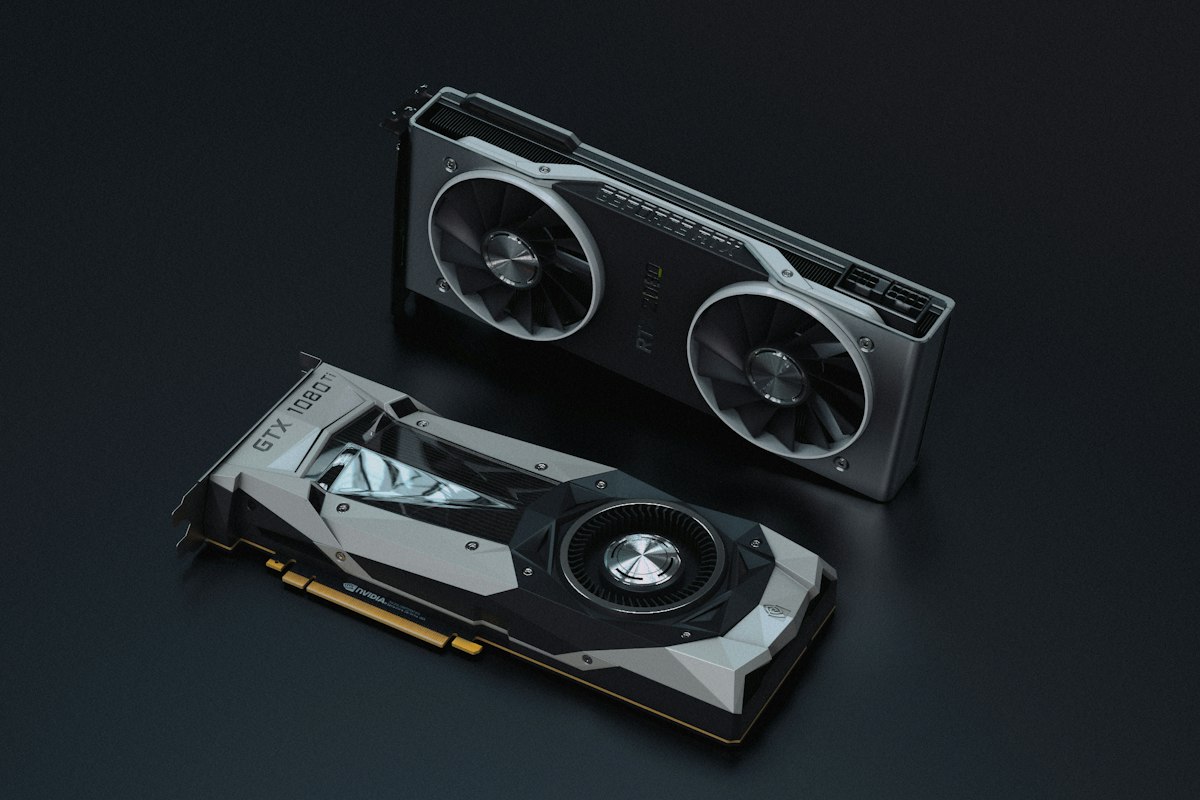
Two GPUs don’t just double your training speed—they double your VRAM, allowing models that wouldn’t fit on a single card. Dual GPU setups require careful component selection.
Dual GPU Considerations
PCIe Lane Requirements:
- Each GPU needs PCIe lanes (ideally x16, minimum x8)
- Consumer CPUs: Ryzen 7000 (28 lanes), Intel 13th/14th gen (20 lanes)
- Threadripper/HEDT: 64+ lanes (ideal for multi-GPU)
- x8 lanes = ~90% performance of x16 (acceptable trade-off)
Physical Space:
- RTX 5090 is 3.5-4 slots thick
- Need spacing between cards for airflow
- Check motherboard PCIe slot spacing
- Consider blower-style coolers for better airflow
Power Requirements:
- 2x RTX 5090 = 900W+ under load (450W each)
- Add CPU, RAM, storage = 1000W+ total
- Recommend 1600W PSU minimum
Cooling Challenges:
- Two GPUs = massive heat output
- Need excellent case airflow
- Top GPU runs hotter (gets less fresh air)
- Consider water cooling or blower GPUs
Budget Dual GPU: 2x Mid-Range Cards ($3,500-4,500)
Perfect for: Distributed training experiments, learning multi-GPU programming, moderate research
- GPUs:2x NVIDIA RTX 5070 Ti Super 16GB ($1,700-1,900)
- 32GB total VRAM
- Lower power than dual 4090
- Fit in standard cases
- CPU:AMD Ryzen 9 7900X ($400-480)
- 24 PCIe 5.0 lanes + 4 for storage = sufficient
- Motherboard: X670E with dual x8/x8 support ($280-350)
- RAM: 128GB DDR5 5600MHz ($450-550)
- Storage: 2TB Gen4 + 4TB Gen4 ($180 + $320)
- Case: Full tower dual-GPU case ($150-220)
- PSU: 1200W 80+ Platinum PSU ($220-300)
- Cooling: 360mm AIO + extra case fans ($140 + $60)
Total: ~$3,500-4,500
What you can train: Models that need 20-30GB VRAM (split across GPUs), distributed training experiments, data parallelism setups. This configuration teaches you multi-GPU programming without breaking the bank.
Premium Dual GPU: 2x RTX 5090 ($6,000-8,000)
Perfect for: Research labs, production ML teams, serious hobbyists with budgets
- GPUs:2x NVIDIA RTX 5090 24GB ($3,600-4,200)
- 48GB total VRAM
- Massive parallel compute
- Each card: 2-3x faster than 4070 Ti Super
- CPU:AMD Ryzen 9 7950X ($550-650)
- 16 cores handle heavy preprocessing
- Motherboard:Premium X670E dual-GPU board ($350-500)
- Reinforced PCIe slots
- Excellent VRM cooling
- 10GbE networking
- RAM: 192GB DDR5 6000MHz ($700-900)
- Storage: 2TB Gen5 + 8TB Gen4 ($300 + $650)
- Case:Premium dual-GPU case ($180-280)
- Designed for dual thick GPUs
- Excellent airflow options
- PSU:1600W 80+ Platinum PSU ($350-500)
- Dual 4090s spike to 1000W+
- Cooling: 420mm AIO + high-airflow fans ($200 + $120)
Total: ~$6,000-8,000
What you can train: Large language models (LLaMA 13B, Mistral variants), massive vision models, complex multi-modal architectures. This setup competes with cloud A100 instances while being significantly cheaper over time.
Threadripper Dual GPU: Workstation Beast ($8,000-12,000)
Perfect for: Professional research labs, ML engineering teams, maximum expandability
- GPUs: 2x NVIDIA RTX 5090 24GB ($3,600-4,200)
- CPU:AMD Threadripper 7960X ($1,500-1,800)
- 24 cores, 64 PCIe lanes
- Both GPUs run at full x16
- Room for expansion cards
- Motherboard:TRX50 workstation motherboard ($700-900)
- Professional-grade components
- Multiple PCIe x16 slots
- ECC RAM support
- RAM:256GB DDR5 ECC ($1,200-1,500)
- Error correction for reliability
- Storage: 4TB Gen5 + 2x 8TB Gen4 RAID 0 ($600 + $1,300)
- Case: Workstation EATX case ($250-400)
- PSU: 1600W 80+ Titanium PSU ($450-650)
- Cooling: Custom loop or dual 360mm AIOs ($400-800)
Total: ~$8,000-12,000
What you can train: Anything. This is a professional workstation that handles both AI training and traditional workstation tasks (CAD, rendering, video editing). The extra PCIe lanes allow adding 10GbE network cards, NVMe expansion cards, or additional GPUs in the future.
Multi-Machine Cluster Setups
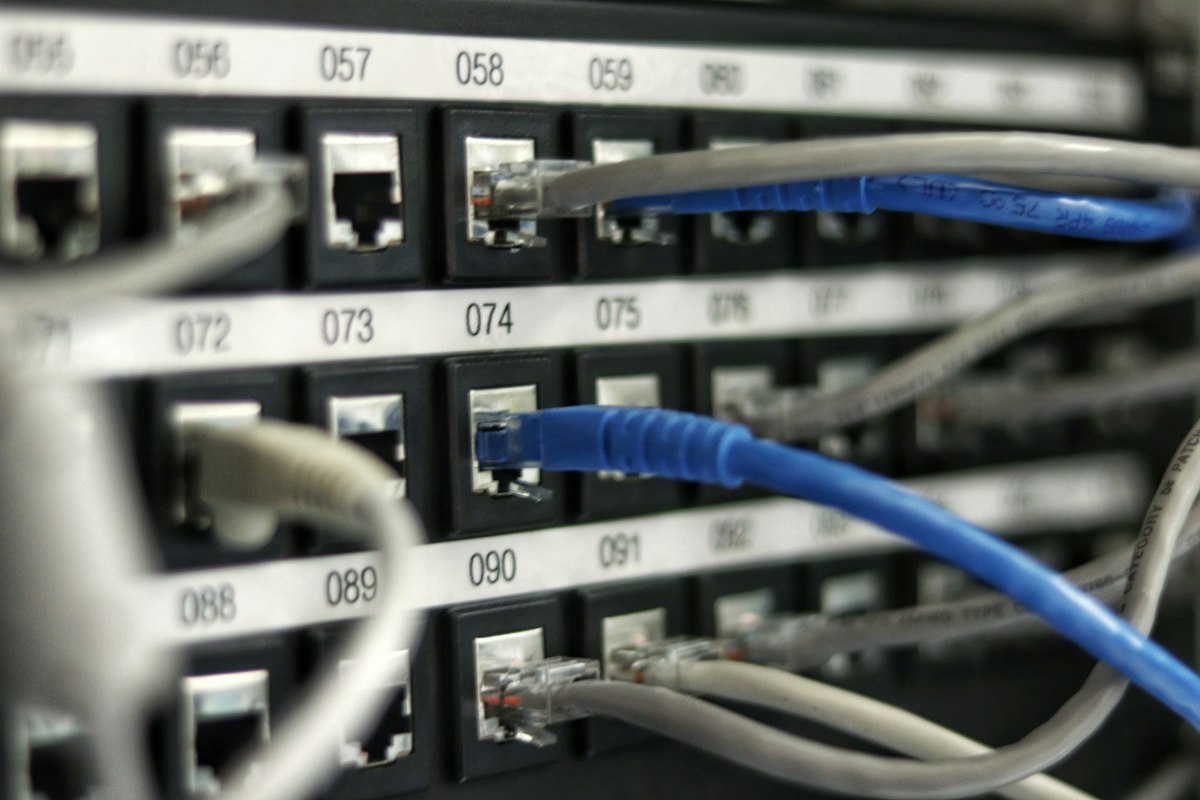
When single machines can’t provide enough compute, clusters distribute training across multiple networked systems. This requires additional networking infrastructure but scales nearly linearly.
Cluster Node Components
Each node in your cluster needs:
- Powerful GPUs (1-2 per node typically)
- Fast networking (10GbE minimum, 25GbE ideal)
- Sufficient RAM (64GB+ per node)
- Reliable storage (local NVMe + network storage)
Small Cluster: 2-Node Setup ($8,000-12,000)
Perfect for: Learning distributed training, small research teams, redundancy
Each Node:
- GPU: NVIDIA RTX 5090 24GB ($1,800-2,100)
- CPU: AMD Ryzen 9 7900X ($400-480)
- Motherboard: X670E with 10GbE ($350-450)
- RAM: 128GB DDR5 ($450-550)
- Storage: 2TB NVMe (local) ($180-220)
- Networking: 10GbE network card if not onboard ($100-200)
- Case: 4U rackmount case or tower ($120-250)
- PSU: 1000W PSU ($180-240)
Cost per node: ~$3,500-4,500
Shared Infrastructure:
- Switch:10GbE managed switch ($300-600)
- 4+ ports for nodes + NAS
- NAS Storage:4-bay NAS with 10GbE + 4x 8TB drives ($800 + $800)
- Centralized dataset storage
- RAID 5/6 for redundancy
- Rack: 12U server rack (optional) ($200-400)
Total: ~$8,000-12,000 (2 nodes + infrastructure)
What you can do: Distributed data parallelism across 48GB total VRAM, experiment with PyTorch DistributedDataParallel and Horovod, redundancy (one node down doesn’t stop work), scale training to use both GPUs simultaneously.
Medium Cluster: 4-Node Setup ($16,000-24,000)
Perfect for: Research groups, ML teams, production model training
Each Node: Same as 2-node setup above (~$3,500-4,500)
Enhanced Infrastructure:
- Switch: 8-port 10GbE switch ($500-900)
- NAS Storage:8-bay NAS with 10GbE + 8x 12TB drives ($1,500 + $2,400)
- 96TB raw capacity
- 60TB+ usable with RAID 6
- Management: KVM switch ($150-300)
- Rack: 24U server rack ($400-700)
- Cooling: Rack cooling fans ($200-400)
Total: ~$16,000-24,000 (4 nodes + infrastructure)
What you can do: 96GB total VRAM across 4x RTX 5090s, train large models with model parallelism, run multiple experiments simultaneously, production-scale training pipelines, research on distributed systems.
Virtualization & Container Strategies
Modern AI workflows use virtualization for reproducibility, isolation, and resource management. Here’s how to set it up properly.
Docker for AI Development
Why Docker for AI:
- Reproducible environments (CUDA versions, dependencies)
- Easy sharing with teammates
- Isolate different projects
- Deploy trained models consistently
Requirements:
- Docker Desktop (free) or Docker CE on Linux
- NVIDIA Container Toolkit (for GPU access)
- Plenty of storage (containers and images)
Best Practices:
- Use NVIDIA’s official base images (pytorch/pytorch, tensorflow/tensorflow)
- Mount dataset directories (don’t copy into containers)
- Use Docker Compose for multi-container setups
- Cache pip/conda packages between builds
VM-Based Approach
When to use VMs instead of containers:
- Need different OS versions (Ubuntu 20.04 vs 22.04)
- Testing deployment on different systems
- Stronger isolation requirements
- Running Windows ML frameworks on Linux host
VM Software Options:
- VMware Workstation: Best GPU passthrough
- Proxmox: Free, enterprise-grade hypervisor
- KVM/QEMU: Linux-native virtualization
GPU Passthrough for VMs:
- Requires IOMMU support (check motherboard/CPU)
- Dedicated GPU per VM (can’t share)
- Complex setup but full GPU performance
- Ideal for cluster nodes running multiple VMs
Kubernetes for AI Clusters
When to use Kubernetes:
- 4+ node clusters
- Multiple users/teams sharing resources
- Need job scheduling and resource limits
- Production ML deployment pipelines
Components needed:
- K8s Distribution: K3s (lightweight) or Kubeadm (full)
- GPU Operator: NVIDIA GPU Operator for K8s
- Storage: NFS server or distributed storage
- Monitoring: Prometheus + Grafana for cluster metrics
Learning curve warning: Kubernetes is complex. Start with Docker, graduate to K8s when you need it.
Software Setup Guide
Base OS Installation
Ubuntu 22.04 LTS (Recommended):
- Best NVIDIA driver support
- Most AI tutorials assume Ubuntu
- 5 years of security updates
- Install: Server edition for clusters, Desktop for workstations
Windows 11 Pro with WSL2:
- Good for single workstations
- WSL2 provides Linux environment
- CUDA works in WSL2
- Useful if you need Windows for other work
CUDA Installation
Critical steps (Ubuntu):
- Install NVIDIA drivers (470+ for RTX 50 series)
- Install CUDA Toolkit (match to framework requirements)
- Install cuDNN (deep learning primitives)
- Verify:
nvidia-smishows GPUs
Version management:
- Use Docker for different CUDA versions
- Don’t install multiple CUDA versions on host
- Check framework requirements (PyTorch, TensorFlow)
Framework Installation
PyTorch (Most Popular):
Use conda/mamba for cleanest installs:
conda install pytorch torchvision torchaudio pytorch-cuda=12.1 -c pytorch -c nvidiaTensorFlow:
pip install tensorflow[and-cuda]JAX (Performance):
pip install --upgrade "jax[cuda12_pip]" -f https://storage.googleapis.com/jax-releases/jax_cuda_releases.htmlDistributed Training Setup
For multi-GPU single machine:
- PyTorch: DistributedDataParallel (DDP)
- TensorFlow: tf.distribute.MirroredStrategy
- Use all GPUs:
CUDA_VISIBLE_DEVICES=0,1
For multi-machine clusters:
- PyTorch: torchrun or torch.distributed.launch
- Horovod: Framework-agnostic distributed training
- Ray: Distributed computing framework
- DeepSpeed: Microsoft’s training optimization library
Monitoring & Management Tools
- nvidia-smi: Basic GPU monitoring (built-in)
- nvtop: Better terminal GPU monitor
- Weights & Biases: Experiment tracking
- TensorBoard: Built-in visualization
- Prometheus + Grafana: Cluster-wide monitoring
Cost-Benefit Analysis
Local vs Cloud: When Does It Pay Off?
Cloud GPU Pricing (approximate):
- AWS p3.2xlarge (V100 16GB): $3/hour
- AWS p4d.24xlarge (A100 40GB x8): $32/hour
- Google Cloud A100 (40GB): $3.67/hour
- Lambda Labs RTX 5090: $1.29/hour
Break-even calculations:
RTX 5060 Ti 16GB Build ($1,400):
- Comparable cloud: Lambda RTX 5090 ($1.29/hr)
- Break-even: ~1,100 hours (~45 days of 24/7 training)
- Realistic: 3-4 months of regular use
RTX 5090 Build ($3,000):
- Comparable cloud: Lambda RTX 5090 ($1.29/hr)
- Break-even: ~2,300 hours (~95 days of 24/7)
- Realistic: 6-8 months of regular use
Dual RTX 5090 Build ($6,500):
- Comparable cloud: 2x A100 40GB (~$7/hr)
- Break-even: ~930 hours (~40 days of 24/7)
- Realistic: 3-5 months of regular use
Hidden Costs to Consider
Local Hardware:
- Electricity: RTX 5090 = 450W under load (~$0.05-0.15/hour at $0.12-0.35/kWh)
- Cooling/AC: GPUs generate heat, AC costs in summer
- Noise: Fans can be loud (consider soundproofing or separate room)
- Depreciation: Hardware loses value (~30% per year)
- Maintenance: Dust cleaning, fan replacements
Cloud:
- Egress fees: Downloading trained models/data costs money
- Storage: Keeping datasets in cloud storage (S3, GCS) adds up
- Idle time: Easy to forget to shut down instances
- Learning curve: Cloud platform complexity
Hybrid Strategy (Best of Both)
- Local for: Development, debugging, experimentation, smaller training runs
- Cloud for: Final training runs, hyperparameter sweeps, urgent deadlines
- Result: Lower cloud bills, faster iteration locally
Power & Cooling Considerations
Power Requirements
Residential power limits:
- Standard US outlet: 15A × 120V = 1,800W max (80% safe = 1,440W)
- 20A circuit: 2,400W max (80% safe = 1,920W)
- Dual RTX 5090 system can pull 1,200W+
- Consider dedicated 20A circuits for multi-GPU builds
UPS for protection:
- 1500VA+ UPS for single GPU workstation ($200-400)
- 3000VA+ UPS for dual GPU system ($600-1,200)
- Protects against power fluctuations and brief outages
- Allows graceful shutdown during power loss
Cooling Solutions
Single GPU systems:
- Good case airflow sufficient
- 3-4 intake fans, 2-3 exhaust fans
- Keep room well-ventilated
- Monitor temps with nvidia-smi
Multi-GPU systems:
- Consider water cooling GPUs (advanced)
- Use blower-style GPUs (exhaust out back)
- Space GPUs apart (use riser cables if needed)
- Room AC may be necessary in summer
Cluster/rack systems:
- Rack-mounted cooling fans ($200-500)
- Separate room with dedicated AC
- Hot aisle / cold aisle configuration
- Consider datacenter colocation for large setups
Frequently Asked Questions
Can I use AMD GPUs for AI development?
Technically yes with ROCm, but practically no. PyTorch and TensorFlow are optimized for NVIDIA CUDA. AMD support is improving but still spotty. Unless you have specific reasons, stick with NVIDIA for AI work. The software ecosystem isn’t worth the headache of AMD compatibility issues.
Is 8GB VRAM enough for learning AI?
For learning basics, yes. But you’ll quickly hit limits. 16GB is the practical minimum for real projects. If budget is tight, get used previous-gen GPUs (RTX 3090 24GB) over new 8GB cards. VRAM determines what you can train—it’s the most important spec.
Should I buy now or wait for next-gen GPUs?
If you need it now, buy now. The cost of waiting (lost training time, lost learning time) exceeds the benefit of slightly better next-gen. GPU improvements are incremental now, not revolutionary. Exception: if new GPUs release in 1-2 months and you can wait, maybe wait.
Do I need ECC RAM for AI training?
No for most users. ECC prevents bit-flip errors but costs significantly more and requires Threadripper/Xeon CPUs. For research/production where reliability is critical, yes. For personal projects and learning, standard RAM is fine. Train on standard RAM for years without issues.
Can I train models while gaming on the same PC?
Sort of. Training uses 100% GPU, so gaming performance tanks. Better strategy: pause training, game, resume training. Or get dual GPUs—train on one, game on other (requires separate displays or GPU switching). Or build separate machines if budget allows.
How much does electricity cost for 24/7 training?
RTX 5090 at full load (450W) for 24/7 at $0.12/kWh = ~$39/month. At $0.30/kWh (California) = ~$97/month. Dual 4090 system = ~$75-190/month. Factor this into break-even calculations. Cloud GPUs include electricity in hourly rate.
What’s the minimum for fine-tuning LLaMA/Mistral models?
LLaMA 7B: 16GB VRAM with quantization (LoRA fine-tuning), 24GB for full fine-tuning. LLaMA 13B: 24GB VRAM minimum with LoRA. Larger models: need multiple GPUs or cloud. Mistral 7B similar to LLaMA 7B. Use QLoRA and 8-bit loading to reduce VRAM needs.
The Bottom Line
Building an AI workstation or cluster is about matching hardware to your workload. A single RTX 5060 Ti 16GB handles most learning and small-scale projects. RTX 5090 enables serious research and production development. Dual 4090s compete with cloud A100 instances at fraction of the long-term cost.
Clusters make sense when single machines can’t provide enough compute or when you need redundancy. Start small—single GPU, learn the tools, scale when workload demands it. Adding a second GPU is easier than building a 4-node cluster from scratch.
The economics favor local hardware for anyone training regularly. Three months of cloud GPU costs equal a capable local machine. Six months equal a professional workstation. A year equals a small cluster. Plus, you own the hardware and can upgrade over time.
Consider the hybrid approach: local for development and experimentation, cloud for final training runs or urgent deadlines. This combines fast local iteration with cloud’s scale-on-demand. Train locally, deploy in cloud, optimize costs throughout.
Most importantly: don’t over-build. Start with what you need today, not what you might need in two years. AI hardware improves constantly—better to upgrade in 18 months than overbuy today. The best AI build is the one that’s training models right now.
What’s your AI build? What models are you training? Share your setup and experiences in the comments!
For comprehensive PC building advice, check out our complete PC Build Guide for programmers, engineers, and AI developers.
Related Guides:
- Laptop Upgrade Guide: Improve Your Computer with RAM, SSD, and Battery Replacements (2026)
- Right to Repair for the Technically Inclined: Fix Your Laptop, PC, and Electronics (2026)
- VR/AR for Engineers and Programmers: Setup and Development Guide to improve productivity (2026)
About the Author
Adam engineering professional with 12 years of multi-disciplinary experience.
This guide was written by an engineer with hands-on experience across chemical, mechanical, electrical, and software engineering disciplines. Currently serving as an Engineering Manager leading technical teams.
Professional background:
- Bachelor of Science, Chemical Engineering
- 12 years industry experience: pharmaceutical development, battery technology, process engineering
- Cross-disciplinary expertise: mechanical, electrical, software, simulation, AI/ML
- Engineering management: team leadership, vendor evaluation, project execution
Content classification:
- ⭐ Own & Use – Personally owned, 6+ months testing
- 💼 Professional Experience – Used extensively in engineering work
- 📊 Engineering Analysis – Thorough technical evaluation